
![How to Use Telegram Emoji Packs Like a Pro [2026]](https://storage.ghost.io/c/f5/49/f54942ce-77f3-4c07-8237-949f03c03d23/content/images/size/w2000/2025/12/Telegram-emojis.png)
Telegram keeps adding new ways to use emojis so chats are easier to read and more fun to use.
Beyond the default emoji keyboard, you now have Telegram emojis, emoji packs, and even Telegram premium emoji packs that change how messages, folders, and reactions look.
Telegram emojis are not only decoration. You can use them to mark important folders, highlight topics, and control how Telegram reactions appear in groups and channels. Become an expert with this guide!
All Kind of Telegram Emojis
To use Telegram emojis well, it helps to know what Standard and Custom Emojis are, and how they’re different from stickers and video emojis.
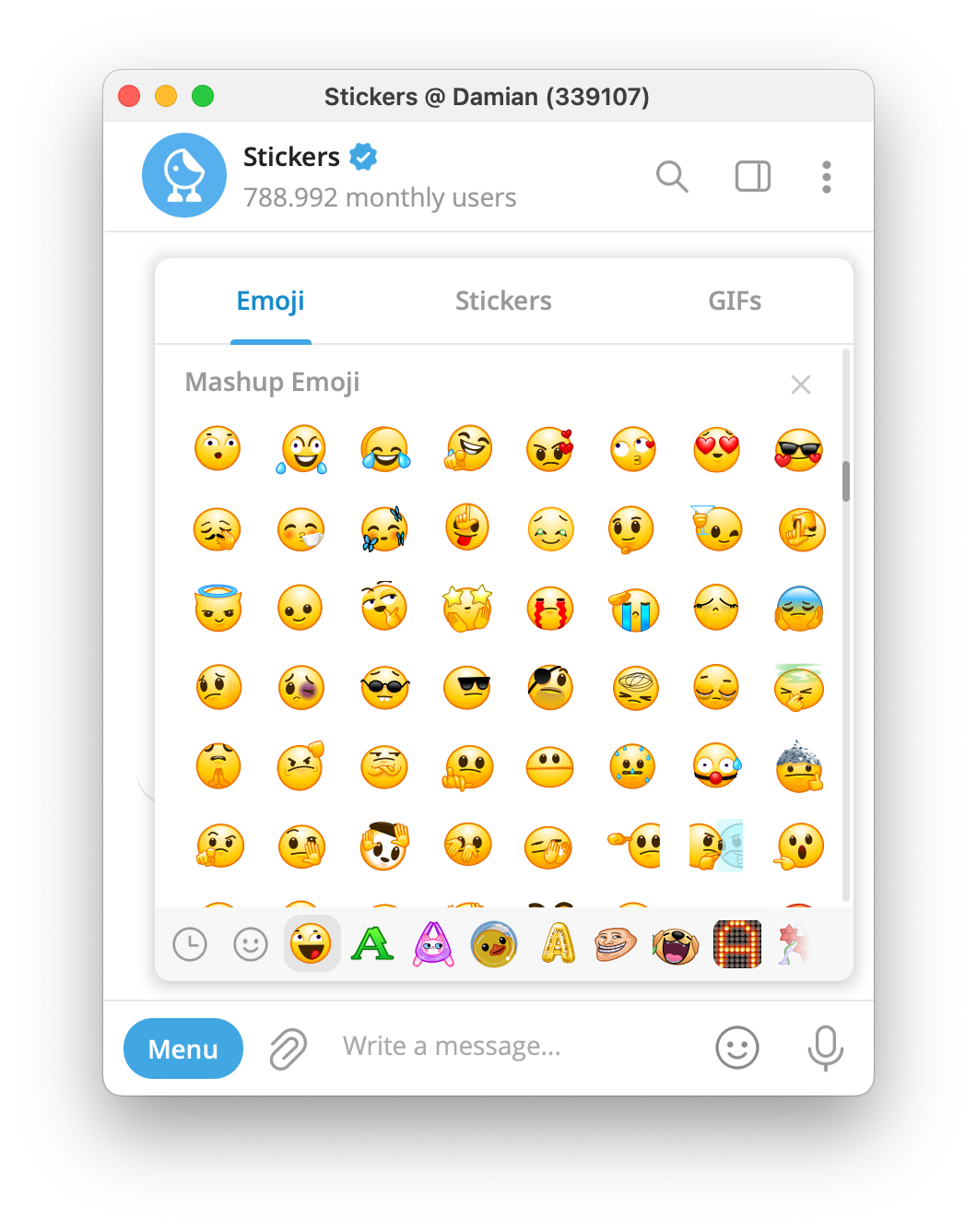
Standard emojis
- Unicode emojis from your phone keyboard.
- Look the same in every app and for every user.
- Used in messages, folder names, and some emoji status options.
- Not part of Telegram emoji packs.
Telegram custom emoji
- Emoji-sized graphics from Telegram emoji packs (static or animated).
- Used inline in messages and captions, in folder and topic names, and as emoji status (for eligible users).
- Can also appear as Telegram reactions and Telegram emoji reactions under messages and service messages (like app messages and in-chat notifications).
- Managed as packs in the Sticker / Emoji panel or through the @Stickers mini app.
Stickers
- Larger images or animations with their own message bubble.
- Grouped in sticker packs, often themed for a project, brand, or community.
- Used in chats and channels, but not as emoji status, folder icons, or inline emojis.
- Separate from Telegram emoji packs, even if you create them with similar tools.
Video emoji
- Short
.WEBMclips rendered at emoji size. - A type of Telegram custom emoji, often included in Telegram Premium emoji packs.
- Used in the same places as other custom emojis: messages, folders, reactions, and emoji status.
Where You Can Use Telegram Emojis
Telegram emojis from your Telegram emoji packs and Telegram Premium emoji packs work in a few key places:
- Messages and captions – insert Telegram custom emoji from the emoji keyboard or sticker / emoji panel.
- Folders and topics – all users can add standard emojis; Telegram Premium users can also use Telegram custom emoji as folder and topic icons.
- Reactions – use Telegram reactions and Telegram emoji reactions under messages and service messages, based on the reaction set allowed in that chat.
- Emoji status – all users can pick standard emojis; Telegram Premium users can set any Telegram custom emoji from their emoji packs.
Custom Emojis
Custom emojis in Telegram are emoji-sized images stored in Telegram emoji packs and Telegram Premium emoji packs.
They can be static, animated, or short video emoji, but they behave like normal emojis in chats: they fit in a line of text, send instantly, and react when tapped.
Unlike standard emojis from your phone keyboard, Telegram custom emojis belong to the Telegram platform.
They live in emoji packs, can be shared with a link, and can be designed for a project, brand, or community.
Telegram Premium users add these packs to their account and use them in any chat that allows custom emojis.
Premium Emojis
You do not need Telegram Premium to send or receive standard emojis, but a Premium subscription improves your emoji experience a lot allowing you to use custom and Premium packs.
Some Telegram emojis are adaptive. These emojis change color to match the current text or accent color in the app, and are usually found in Telegram Premium emoji packs. Free users can see them, while Telegram Premium users can send and use them in chats, reactions, folders, and emoji status.
How to Use Telegram Emojis
Telegram emojis are not limited to normal messages. Your emoji packs can show up in reactions, service messages, chat folders, topics, and as badges next to your name.
Emojis in Service Messages
Telegram also shows short system lines called service messages. Examples are “User joined the group”, “Gift received”, “Missed call”, or “Profile photo changed”.
These service messages now accept emoji reactions in the same way as normal messages, so you can respond with a quick emoji instead of sending a separate reply.
Emojis as Reactions
Telegram reactions use the same emoji platform as messages:
- In private chats, you always have a basic reaction row and can long-press any message to react.
- In groups and channels, admins choose if reactions are allowed and which emojis appear as Telegram reactions and Telegram emoji reactions.
- When custom reactions from Telegram emoji packs are enabled, Telegram Premium users can react with more emojis, including from Telegram Premium emoji packs, while free users can still tap existing reactions to add to the counter.
- Service messages follow the same rule: when someone joins, sends a gift, or starts a call, you can long-press that service message and choose a reaction.
Emojis in Chat Folders
All users can add standard emojis to folder names. Premium users can also use custom emojis from their emoji packs as folder icons, and everyone will see them in the chat list.
To set a custom emoji for a folder:
- Open Settings → Folders.
- Edit or create a folder.
- Tap the icon or name and open the emoji selector.
- Pick a standard emoji, or a Telegram custom emoji if you have Premium.
- Save the folder.
Use simple icons for clarity, for example a 🎓 emoji for “Courses”, or a 📢 emoji for “Announcements”.
Custom Emojis in Group Topics
Forum-style group topics can also use custom emojis as icons. This makes long lists of topics easier to scan.
- All users see topic icons in the topic list.
- Telegram Premium users can set any Telegram custom emoji from their emoji packs as a topic icon.
- Non-Premium users are limited to the default topic icon pack when they create or edit topics.
To set a custom emoji for a topic in a forum group:
- Open the forum-style group and find the topic.
- Edit the topic (or create a new one).
- Tap the topic icon area and choose a standard emoji or a Telegram custom emoji.
- Save the topic.
You can use different icons for “Questions”, “Bug reports”, “Releases”, or language-specific topics. If you manage structured communities with tools like InviteMember, aligning folder icons and topic icons with the same Telegram emoji packs keeps navigation consistent for members.
Emojis in Usernames
You can add emojis in two ways around your name:
- In your display name (the name people see in chats).
- As an emoji status badge next to your name.
Standard emojis work for everyone. You can type them directly into your first name, last name, or channel title. This does not require Telegram Premium.
Custom emojis next to your name use emoji status. Telegram lets you set a small emoticon or custom animated emoji that appears beside your name in chats and profiles.
With Telegram Premium, you can choose any Telegram custom emoji from your Premium emoji packs as your status. Free users are limited to a preset list of standard icons.
To set an emoji next to your name:
- Open your profile settings.
- Tap Set Emoji Status (or the small emoji near your name).
- Pick a standard emoji, or a Telegram custom emoji if you have Premium.
- Save the change.
Creating and Managing Custom Emojis
Creating custom emojis in Telegram has two parts: designing the emoji files and managing them in Telegram emoji packs. Broad usage in chats requires Telegram Premium.
Create Emojis from the Emoji Panel
The in-app method is the fastest:
- Open any chat and tap the sticker / emoji button.
- Go to the emoji tab.
- Tap Create or + to start a new emoji pack.
- Add images or short videos that meet Telegram’s emoji limits.
- Name and publish the pack.
This creates a Telegram emoji pack linked to your account. Telegram Premium users can use these emojis in any chat that allows custom emojis. Free users can view them everywhere and try them in Saved Messages.
Use the @Stickers Mini App
The @Stickers mini app gives more control over sticker packs and Telegram emoji packs.
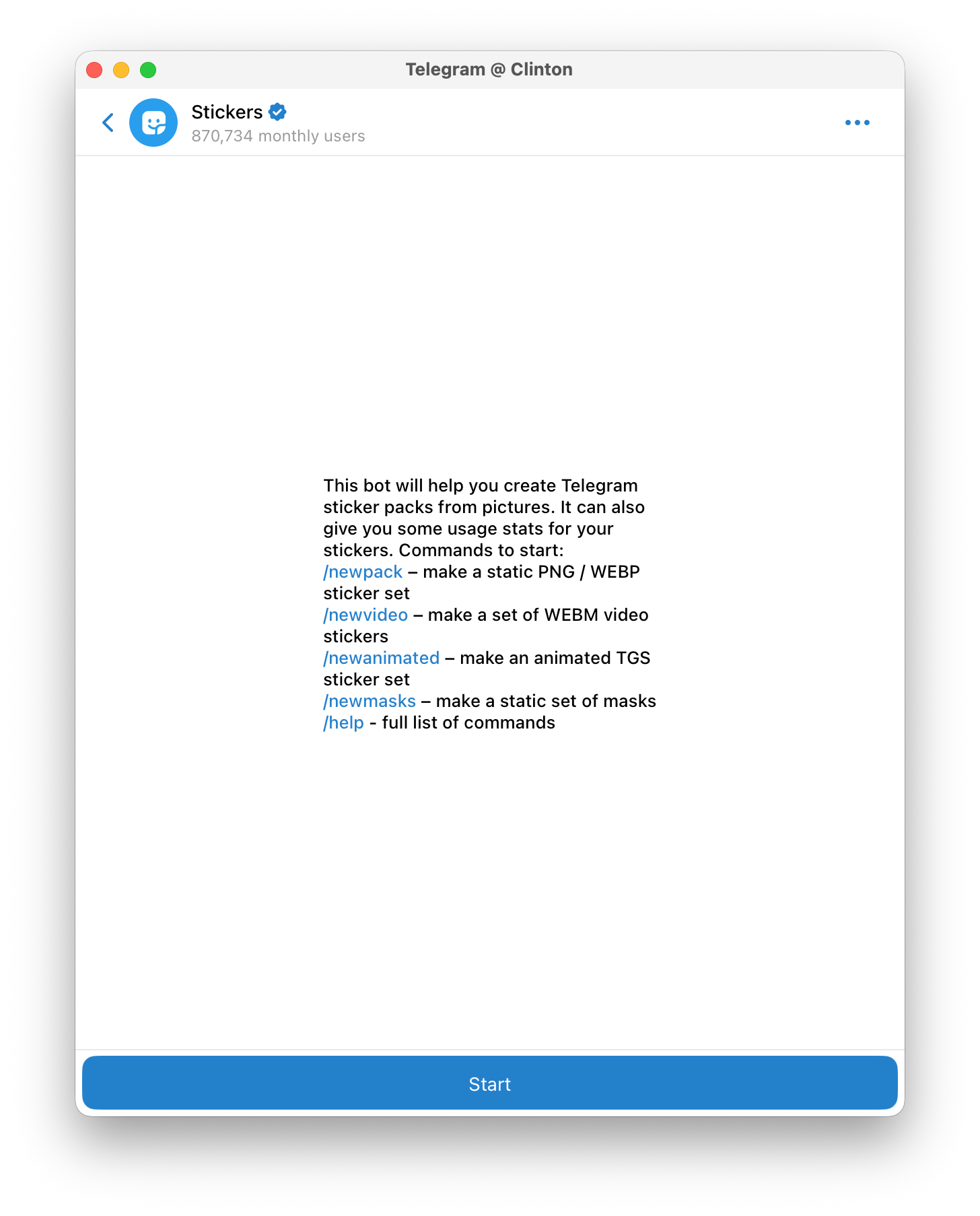
Just start the bot to:
- Create and name new emoji packs.
- Upload, replace, or remove emojis.
- Reorder emojis inside a pack.
- Get the pack link to share with others.
- Check which emojis are used the most.
Advanced Design Workflow
If you design outside Telegram, keep emojis clean and readable:
- Static emojis: PNG or WEBP around 100×100 px with a transparent background.
- Animated or video emojis: exported as TGS files or short
.WEBMclips that follow Telegram’s size and length rules.
After export, you still add them through the emoji panel or @Stickers mini app to build or update your packs.
Once your Telegram emoji packs are published, Telegram Premium users can add them and reuse the same emojis in messages, folders, reactions, and emoji status.
Tips and Tricks for Effective Use
Control Emoji Reactions as an Admin
If you manage a group or channel, you can control which emojis appear as reactions.
To adjust reactions:
- Open your group or channel settings.
- Go to Reactions.
- Choose Disabled, Standard, or Custom.
- For custom, pick which emojis and Telegram custom emojis are allowed as Telegram reactions.
You can start with a small set of clear reaction emojis (for example 👍, 🎉, ❓, ❗), and add a few custom emojis from your own packs for brand or community-specific reactions. Disable chaotic or confusing reactions in serious channels, and keep more playful sets in informal groups.
Use Adaptive Emojis for Interfaces
Adaptive Telegram emojis change color to match the chat theme or accent.
They work well for:
- Folder icons that should blend with both light and dark themes.
- Emoji status that matches your profile color.
- Neutral reactions that must look good in any chat.
When you browse Telegram Premium emoji packs, look for “adaptive” in pack names or descriptions.
Separate Packs by Purpose
Organize your Telegram emoji packs by use case:
- One pack for Telegram emoji reactions (clear faces and symbols).
- One pack for folder and topic icons (simple, high-contrast icons).
- One pack for community identity (logos, mascots, event badges).
This keeps the emoji panel fast to scan. For a large project or paid community, share a short list of “official” packs so admins and members use the same Telegram emojis everywhere.
Keep Styles Consistent
When building a new pack:
- Use the same line thickness and color palette.
- Avoid thin details that disappear at emoji size.
- Test each emoji in an actual chat before publishing the pack.
Consistent style helps users understand that these Telegram emojis belong to the same system, which is useful for branded communities or structured support channels.
Limit Animated Reactions
Animated Telegram emoji reactions are powerful, but too many can distract from content. Use them for:
- Welcomes and milestone celebrations.
- Important positive signals (for example, ✅ with a subtle animation).
- Rare events, not routine approvals.
For everyday reactions like “seen”, “agree”, or “thanks”, a simple static custom emoji is often enough.
In Short
Telegram emojis can turn plain chats into clear visual signals. With the right Telegram emoji packs and Telegram Premium emoji packs, you can label folders, fine-tune Telegram emoji reactions for messages and service messages, and keep topics and status consistent across your whole account.

