

If you already use InviteMember, the simplest way to monetize Discord is to connect a Discord role to a subscription plan. InviteMember assigns the role when someone pays, Discord permissions decide what it unlocks, and the role is removed automatically when the membership ends.
If you are still choosing between resource types, InviteMember's guide on Telegram groups, Telegram channels, and Discord roles and the Discord server role setup guide show the difference. Telegram channels are best for one-way updates, Telegram groups are best for discussion, and Discord roles are best when the paid area lives inside Discord.
Many communities use more than one resource. A plan can include a Telegram channel for announcements, a Telegram group for discussion, and a Discord role for events or member-only rooms.
What a Discord role unlocks
InviteMember uses Discord roles for access. Discord permissions decide what the role can see or use.
Use a Discord role when you want to unlock:
- private text channels for premium posts or member chat
- private voice channels for calls or live sessions
- private forum channels for organized discussion or Q&A
- private categories that bundle several premium channels
- mixed servers with public areas and separate premium spaces
- multiple roles for different plans
You do not need to make the whole server private. Most projects keep public channels open and reserve only the premium areas for subscribers.
Prepare Discord first
Before you connect the role in InviteMember:
- Create or open your Discord server.
- Create the paid role.
- Create the private channels or forum channels the role should unlock.
- Set permissions so only the right role can see or use those areas.
If Discord shows an InviteMember entry in the channel permissions list, you can usually ignore it for the standard membership setup. The paid role is what controls access.
Connect the role in InviteMember
In InviteMember, open your project and go to Settings > Resources.
- Click Add new.
- Choose the Discord resource option.
- Connect your Discord server and select the role you want InviteMember to manage.
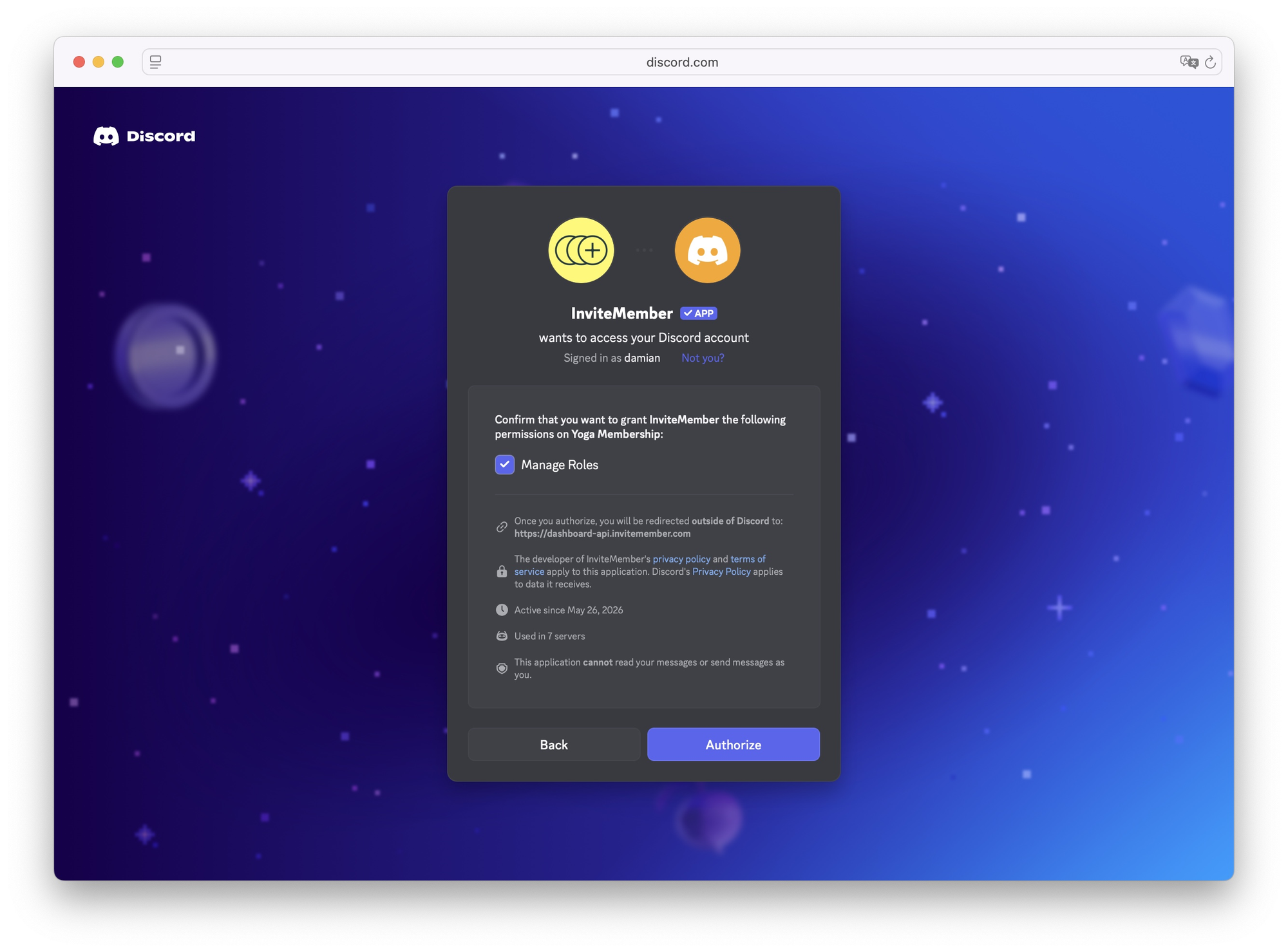
- Approve the permission Discord asks for so InviteMember can manage roles in your server.
- Rename the resource if needed and add a short description.
- Attach the resource to the right subscription plan so buyers receive the role automatically.
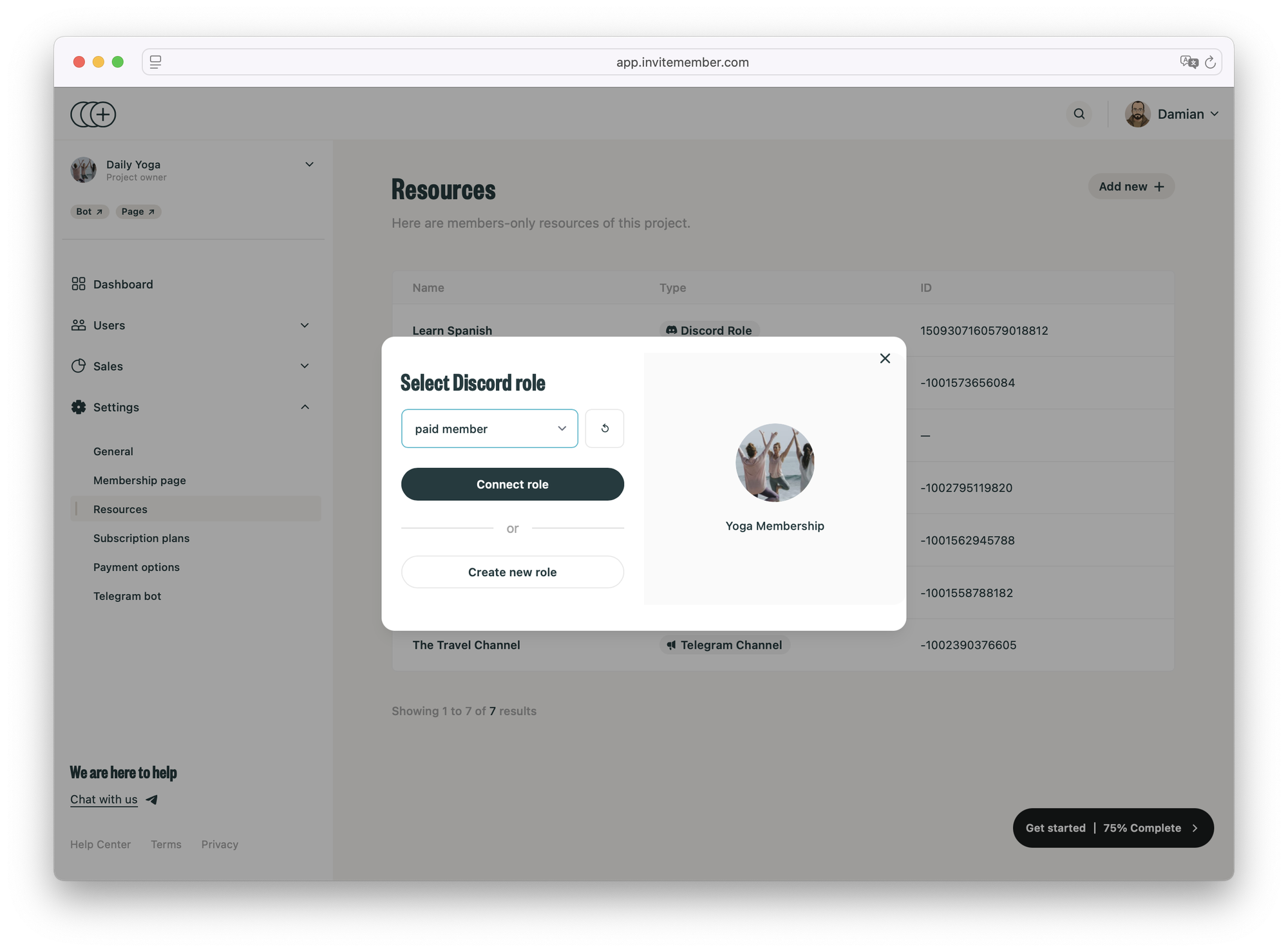
InviteMember can also add a Discord server role to an existing project, or you can start a Discord-only project from scratch if that is the cleaner fit.
Fix common role problems
If a role is grayed out, Discord is usually blocking it from being assigned.
Common causes:
- the role is @everyone
- another integration manages the role
- the InviteMember bot role is below the paid role in the role hierarchy
- the bot does not have permission to assign roles
To fix it, open Discord server settings, move the InviteMember bot role above the paid role, or create a fresh normal role for subscribers. Then return to InviteMember and refresh the role list.
Do not try to reorder roles from the channel permissions panel. Role hierarchy is controlled in Discord's server roles settings.
Test before launch
Before you promote the paid Discord offer:
- buy or activate a test plan
- confirm the member gets the correct role
- confirm the role unlocks only the intended channels or forums
- cancel the test plan or let it expire
- confirm InviteMember removes the role automatically
That is the real test: access should change without manual cleanup.
FAQ
Can you monetize Discord with InviteMember?
Yes. InviteMember can use a Discord role to unlock paid areas inside a server.
Do you need to make the whole server private?
No. Most communities keep public channels open and reserve only the premium spaces for subscribers.
Can you use private forum channels or voice channels?
Yes. InviteMember roles can be used with private text channels, voice channels, forum channels, and mixed server layouts.
Why is the role grayed out?
It is usually a Discord permissions or role hierarchy problem. Check the bot role position and the role's management status.
What happens when a membership ends?
InviteMember removes the Discord role automatically, so expired members lose access to the paid areas.
The short version
InviteMember turns Discord into a paid-access surface by attaching a role to a subscription plan. Choose Discord when the community lives there, choose Telegram when the resource is better as a channel or group, and combine them when one plan needs both broadcast and discussion.

