

An approval-required Telegram invite link lets people apply instead of entering straight away. They tap Request to Join, then an administrator approves or dismisses the request from the chat.
Use it for a manually managed private group or channel when you want to review each applicant. It does not check payment, subscription status, or any rule outside Telegram.
That matters when access is paid or part of a promotion. A normal Telegram invite link does not know whether somebody paid, and it cannot remove them when a membership ends. For paid access, use an InviteMember bot link or an im.page link, not a Telegram invite link. InviteMember then manages the customer's Join step. The Telegram-only steps in this article are for chats you manage directly; the InviteMember workflow is explained below.
Choose the right link first
| What you need | Use this | What happens |
|---|---|---|
| Let invited people enter a private chat | A direct invite link | They join when they open the link. |
| Give free short-term access to a chat you manage yourself | A direct link with an expiry date or member limit | The link stops at the date or limit you set. |
| Run a paid membership | An InviteMember bot link or im.page link |
Share that link only, never a Telegram invite link. Eligible customers use the Join buttons InviteMember provides. |
| Decide on each applicant | An additional link with Request Admin Approval | Each person sends a request for an admin to decide. |
If you are still choosing the kind of space to run, choose between a Telegram channel and group. A group is for conversation. A channel is for publishing.
If InviteMember manages the chat, do not use these steps
Do not create, share, replace, or manually approve Telegram invite links for a group or channel connected to an InviteMember project.
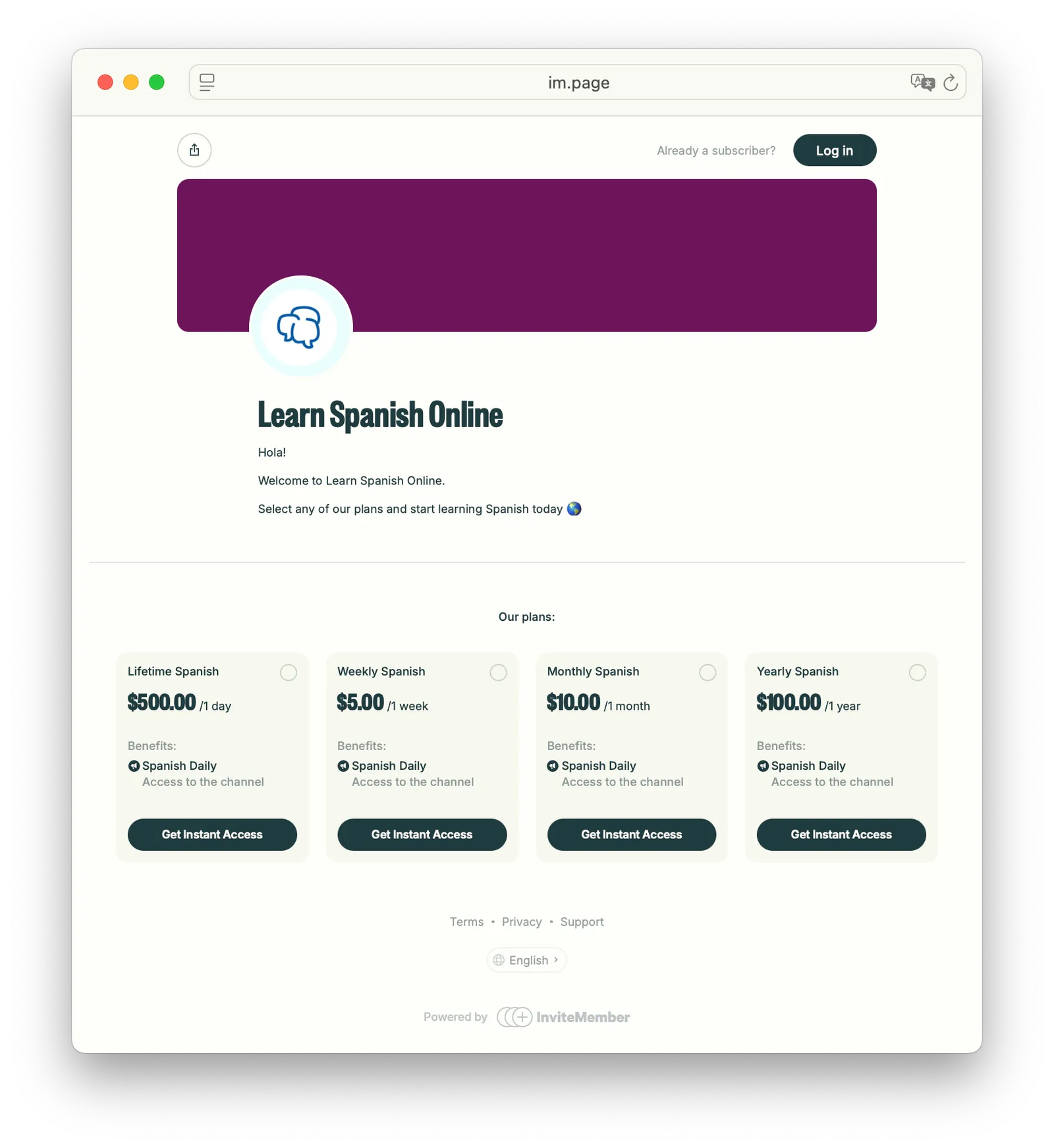
Customers must start with an InviteMember bot link or im.page link, then open its Join buttons after subscribing to your plans. Do not send them a Telegram invite link. InviteMember gives each eligible customer a unique join-request link and approves or declines the request. It also removes access when the membership ends.
For the customer route, see how to join a paid Telegram channel or group. The steps below are for a group or channel you manage directly outside InviteMember.
Create an approval-required invite link
You need an administrator role that can manage invite links.
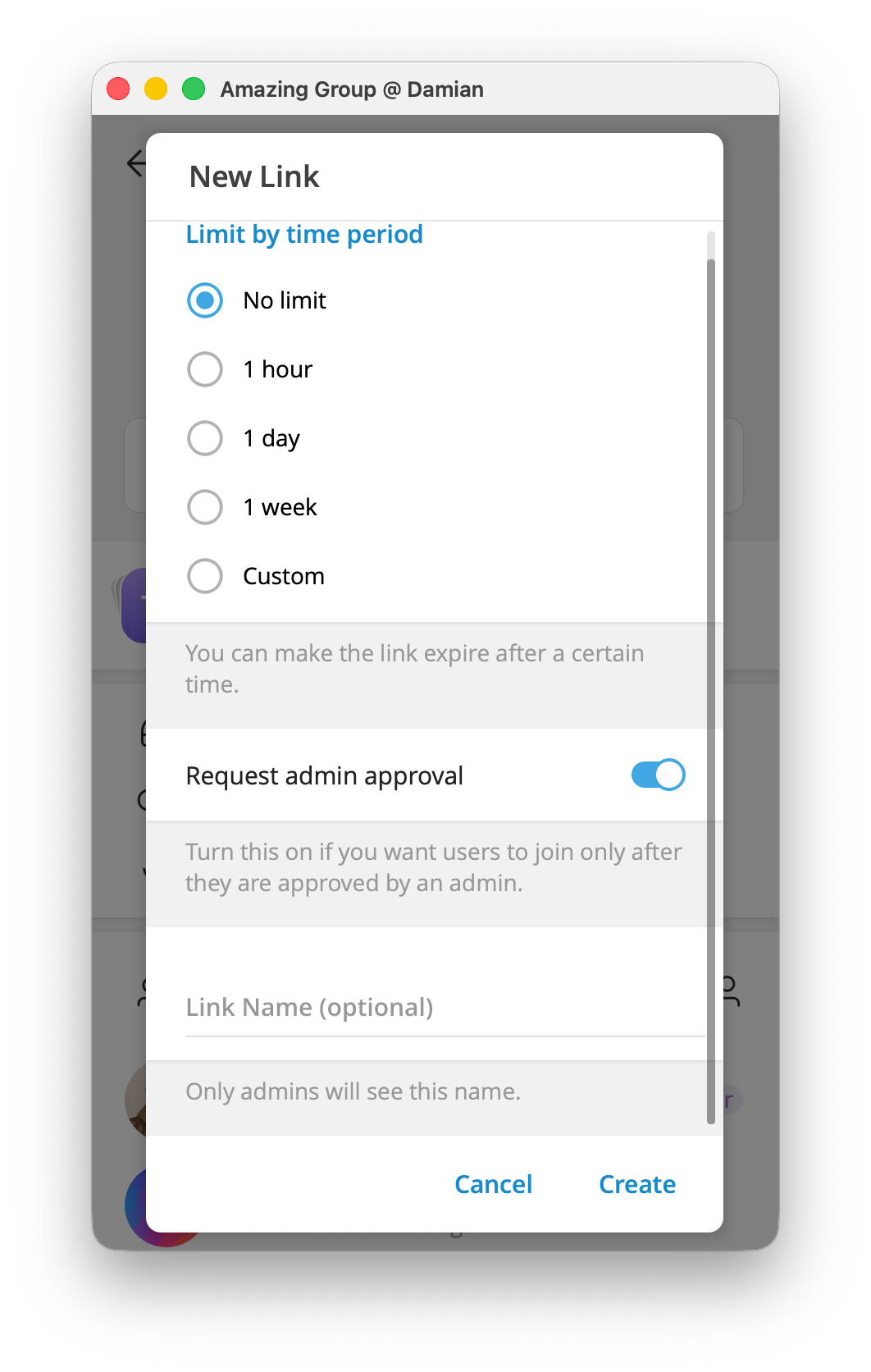
- Open Invite Links. Open the group or channel, choose Edit Group or Edit Channel, then select Invite Links.
- Choose the link to change. Select Create a New Link when you need a separate route. To change a link you already made, select it from the Invite Links list instead.
- Require approval. Enable Request Admin Approval. Give a new link an internal name when you use more than one, such as
Workshop applicantsorPartner referrals. You can return to this screen later to turn approval on or off for that link. - Set an expiry date if needed. Telegram does not let an approval-required link also have a member limit. If you need a fixed number of direct entries, create a separate direct link with that limit.
- Save and copy the link. Check that you copied the approval-required link, not another link from the list.
Menu names differ across Telegram apps. The reliable place is the chat's invite-link list, where you create, name, review, and revoke extra links.
For ordinary public links and direct private links, see how to share a Telegram group or channel link.
Review a join request
When someone opens your approval-required link, Telegram shows Request to Join. After they send it, open the group or channel.
Telegram can show a Join Requests bar near the top of the chat. On other app versions, look for member-request controls in the chat profile or management area. Open the request to see the public profile pictures and bio Telegram shows, then choose Approve or Dismiss.
Approval adds the person to that chat. Dismissal keeps them out.
Close or change an invite route
Use a separate labeled link for each purpose when it helps you manage requests. A workshop link and a partner-referral link can then be stopped separately.
Revoke a link when its purpose ends or it has been shared in the wrong place. Revoking stops new people from using that route. It does not remove people already in the chat, so remove a current member separately when needed.
An expired link and a revoked link both stop new entry. A member limit is only for a direct link. It cannot be combined with Request Admin Approval.
A separate option for public groups
Public groups can use a different setting called Approve New Members. It is a group-wide rule, not an extra private invite link. In Telegram's documented route, open Group Info > Edit > Group Type, set Who Can Send Messages to Only Members, then enable Approve New Members. Labels can vary by app and group state.
This option applies to public groups, not channels. It is separate from the approval-required private link described above.
Give somebody free access in InviteMember
Use an access code when the person should enter through InviteMember. For a permanent individual exception, whitelist their Telegram ID and then use Add member in the group or channel. Whitelisting does not add the person automatically.
That keeps the exception inside the project instead of sharing a normal Telegram link.
FAQ
Where do Telegram join requests appear?
Open the group or channel after someone sends a request. Look for the Join Requests bar or member-request controls in the chat profile or management area.
Why did an invite link stop working?
It may have expired, reached the limit set on a direct link, or been revoked. Open the invite-link list to see which link you shared and whether it is still active.
Should I use manual Telegram approval for a paid InviteMember group?
No. Send customers to an InviteMember bot link or an im.page link, never a Telegram invite link. They use the Join buttons there. InviteMember must create and process the unique join-request link for the connected resource.

