
Before you share any Telegram group link, decide how people are meant to enter. An ordinary Telegram group can use public or private entry. A paid member benefit needs a membership route that controls who receives access.
If you sell access with InviteMember, the group or channel is a private resource. Do not share its Telegram invite link. Share the subscription project's membership page, membership bot, or direct plan link instead. After signup, eligible customers enter with their own Join button.
For a group that you manage directly in Telegram, use a public t.me/username URL or a private invite link. On Telegram Desktop, open the group profile, choose Manage, then Invite links to copy its primary link or create a separate one.
| What you manage | Link to share | What happens next |
|---|---|---|
| Paid private group or channel connected to InviteMember | The membership page, membership bot, or direct plan link | The person signs up, then uses their own Join button to enter the included resource. |
| Public Telegram group | Its t.me/username URL | The person opens the group and selects Join. |
| Regular private Telegram group | An active Telegram invite link | The person can join while the link is valid. |
| Regular private group where you approve people | An additional link with Request admin approval enabled | The person sends a request and waits for an admin decision. |
Share the project link for a paid Telegram resource
Use one of the project's customer entry links:
- Membership page: the main public link for a website, profile, newsletter, or link-in-bio page. Customers can view plans, pay, activate an access code, and manage their membership there.
- Membership bot: a good entry link inside Telegram posts and direct messages.
- Direct plan link: a focused link for one plan, such as an annual offer, a promotion, or an access-code-only plan. In the project dashboard, open Settings > Subscription Plans, select the plan, and copy its direct page or bot link.
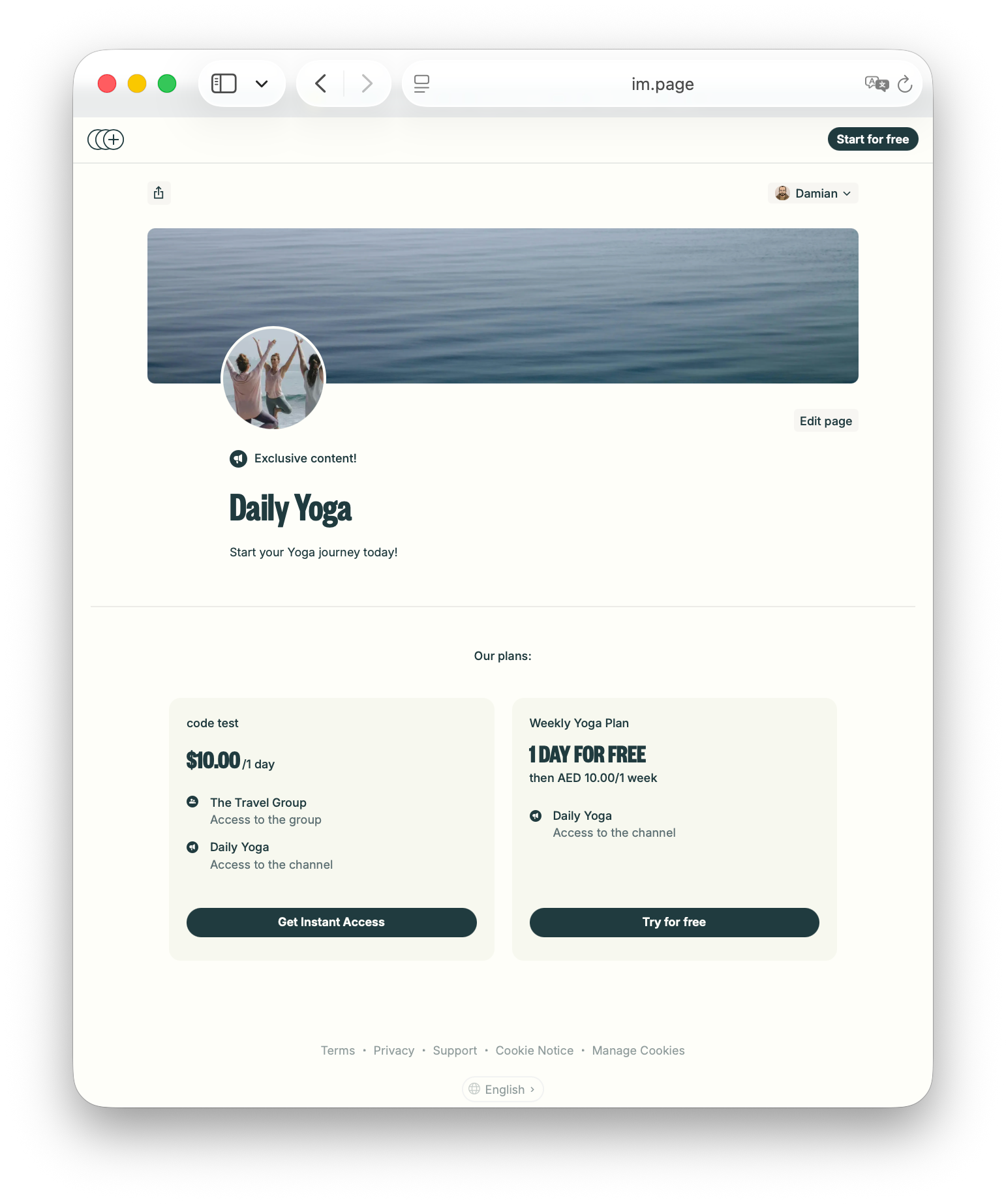
After a customer has an active plan, they open their membership page or bot and select the resource's Join button. InviteMember gives that customer a unique join-request link and handles the request. That keeps checkout and resource access in the same membership flow.
If you are setting this up for the first time, start an InviteMember project, connect the private group or channel under Settings > Resources, and add it to the correct plan before sharing a project link. The paid Telegram setup guide covers the wider setup.
Share a public Telegram group URL
Open the group and select its name or photo to open the profile. A public group shows its username as a t.me/username address. Copy that address and paste it into the message, post, email, or page where people should find the group.
Use the username exactly as it appears. A display name is not a group URL, so do not make up an address from the group's title. If no public username appears, the group is private and needs an invite link instead.
Copy a regular private group link on Desktop
These steps are for a private group that you manage directly, not a paid InviteMember resource. You need to own the group or be an administrator who can manage invite links.
- Open the group profile. In the group chat, select the group name or photo. Telegram opens the group information panel.
- Open the group settings. Select Manage. The dialog heading is Edit group.
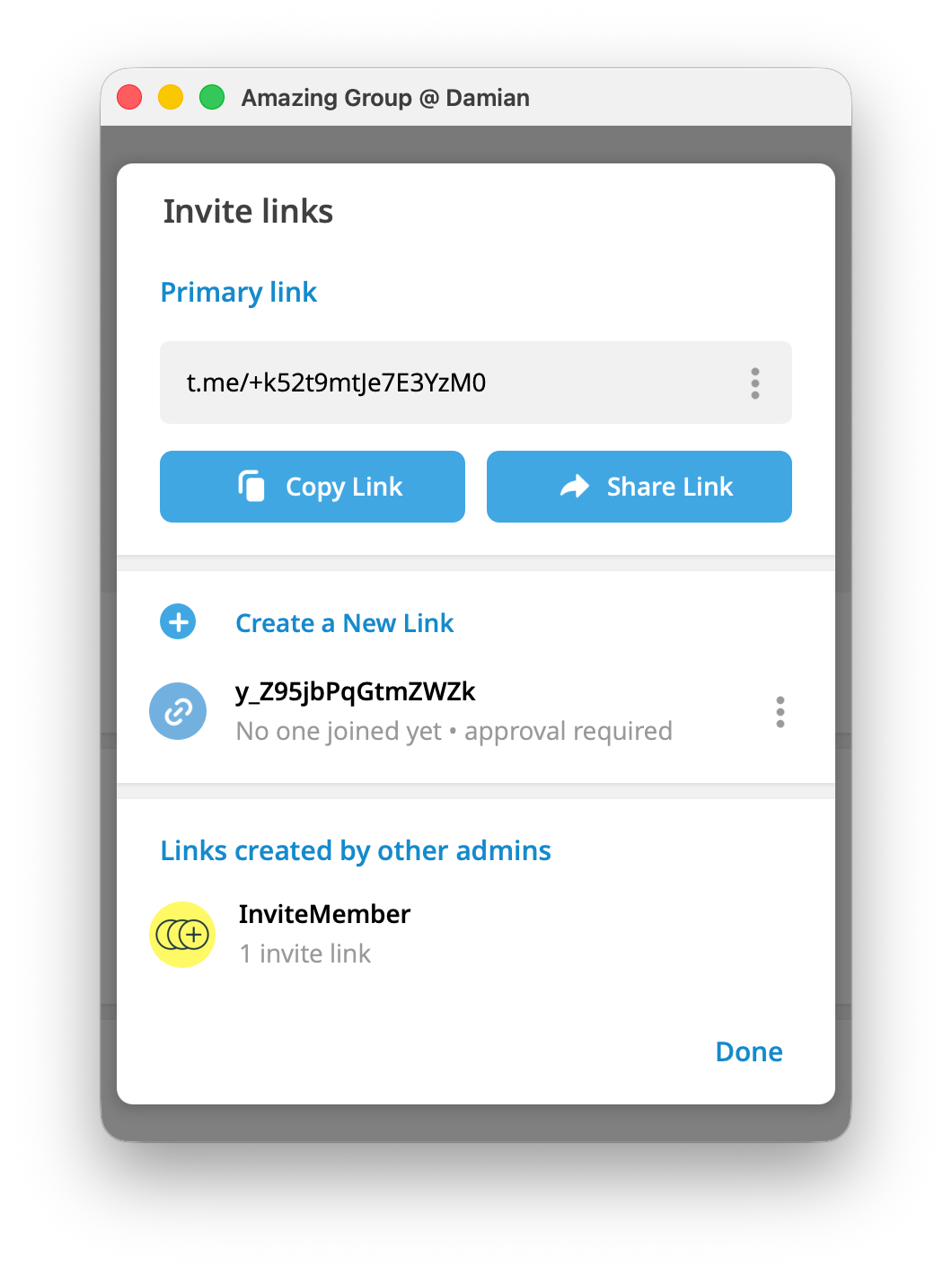
- Open the link list. Select Invite links. The screen shows the Primary link and Create a New Link.
- Copy the primary link. Under Primary link, select Copy Link. Select Share Link when you want Telegram to open your computer's share menu.
- Send the copied URL. Paste it in the message or place where people will use it. Test it with an account that is not already in the group before you post it widely.
On iPhone, open the group profile, then select Edit and Invite Links. On Android, open the group profile, select the pencil icon, then Invite Links. The same primary-link and additional-link choices appear there.
If you need to add one saved Telegram contact rather than send a link, use Add Member in the group. That is a different action; the direct-add guide covers it.
Create a controlled link for a regular private group
Create a separate link for a partner, a short event, or a campaign where you may need to stop one source later without changing the main link.
- In Invite links, select Create a New Link.
- For direct entry, set Limit by time period or Limit by number of users. Use both when the invitation should end after either condition.
- Turn on Request admin approval when every person should wait for an admin. The member-limit control disappears because an approval link cannot use a member limit. A time limit still works.
- Add a Link Name (optional), such as November workshop or Partner newsletter. Telegram shows that name to administrators, not recipients.
- Select Create, then select Copy Link for that new link in the list.
Telegram records the people who joined through each additional link. If a link spreads beyond its intended audience, revoke it in Invite links and create a replacement. Revoking stops future joins through that URL; it does not remove people already in the group.
An approval link is useful when you need to review applicants. The Telegram join-request guide shows what applicants see and how an administrator handles the request.
Use QR codes and fix links safely
For a public or regular private group, Telegram can turn an invite link into a QR code from that link's options under Invite links. The QR code carries the same URL, so its expiry, limit, or approval rule still applies.
For an InviteMember paid resource, create the QR code from the membership page, membership bot, or direct plan link - never from a Telegram resource invite link. For other Telegram link types, see how to share Telegram links.
| Problem | Correct next action |
|---|---|
| A regular private-group link expired, reached its limit, or was revoked | Create and share a replacement in Invite links. |
| A regular private-group applicant is waiting | Approve the request, or share a direct-entry link when screening is not needed. |
| A paid customer cannot enter an InviteMember resource | Have them open the membership page or bot used for signup, check their active plan, and use its Join button. Do not send them the resource's invite link. |

