

To pin a message in Telegram, open the conversation, open the message's menu, select Pin, and confirm. The pinned message appears in a bar at the top of the chat.
You can pin multiple messages to keep important rules, announcements, and links easy to find.
How to pin a message in Telegram
On Android
- Open the group, channel, or private chat and find the message.
- Tap the message to open its menu. If needed, press and hold it instead.
- Select Pin, choose any notification or visibility options shown, and confirm. The message appears in the pinned-message bar.
On iPhone
- Open the conversation and find the message.
- Press and hold the message to open its menu.
- Tap Pin, choose any options shown, and confirm. The message appears at the top of the chat.
On Telegram Desktop
- Open the conversation on your computer and find the message.
- Right-click the message to open its menu.
- Select Pin and confirm. The message appears in the pinned-message bar.
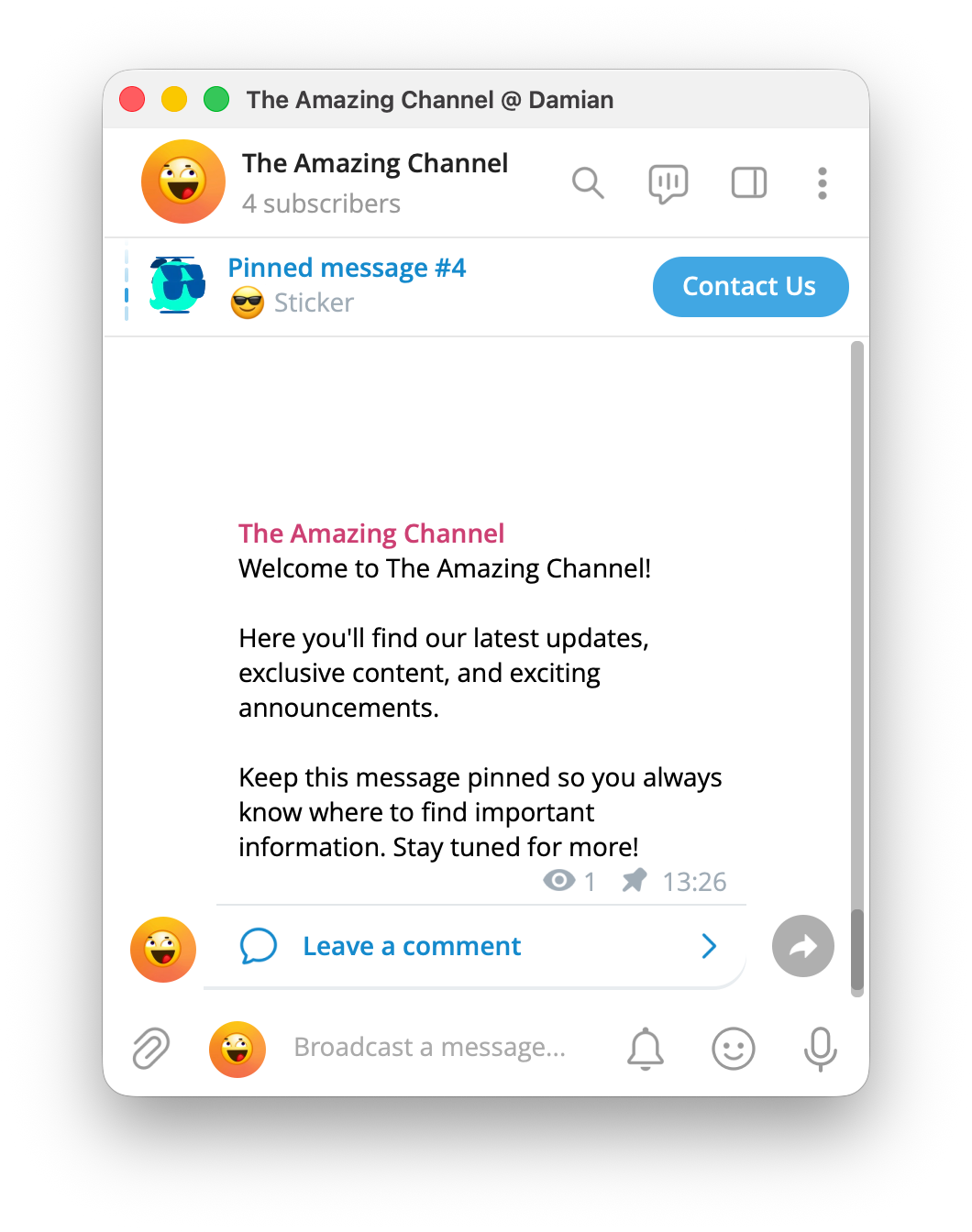
Pinning a message is different from pinning a chat. When you pin a chat from your chat list, you move the entire conversation to the top of that list.
Who can pin messages in Telegram?
| Chat type | Who can pin messages? |
|---|---|
| Group | The owner, admins with pinning permission, and regular members if the group allows it. |
| Channel | The owner or admins with the required permissions. |
| Private chat | Either person, where pinning is available. |
In a private chat, you can pin a message for yourself or for both people. Choose who should see the pin when Telegram offers this option.
In a group, pinned messages are shared with members. To control who can pin them, open the group's profile, enter its edit screen, and select Permissions. Turn off Pin Messages, where available, to stop regular members from adding pins.
To give an admin permission to pin messages, open Administrators in the group's settings, select the admin, enable their pinning permission, and save your changes.
How to pin a message without notifying everyone
When you pin a message in a group, Telegram may ask if you want to notify members. Clear the notification option before confirming if you want to pin the message silently.
Save notifications for important updates, such as changes to community rules or event schedules.
How to find multiple pinned messages
To pin another message, repeat the pinning steps. You do not need to remove any existing pins.
- Tap or click the pinned-message bar to jump between pinned messages.
- Select the pinned-message list button to view all the pins together.
To remove a pin, open the message's menu, select Unpin, and confirm if prompted. The message stays in the chat history.
Why can't I pin a message in Telegram?
If the Pin option is missing, check your permissions:
- In a group, ask an admin whether members can pin messages.
- In a channel, ask the owner or an authorized admin to pin the message. Subscribers cannot manage pins.
- Make sure you have opened the menu for the message, not the menu for the entire chat.
What to pin in your Telegram community
If you run a group or channel, create a short message that helps members get started. For example:
Start hereRead the community rules.Check this week's schedule.Open our support bot and press Start if you need private help.
Add the relevant links and use Telegram text formatting to make the message easy to read.
A standard Telegram support bot cannot start a private chat with a member. Include a direct link to the bot and explain that members need to start the bot before it can reply.
You can also set up a Telegram welcome message that directs new members to your pinned guide.
If you run a paid community, use a membership platform like InviteMember to manage access to your private groups and channels. A pinned message helps members find information after they join, but it does not control who can enter.
Review your pins regularly and remove outdated information. Keep the most important instructions easy to find.

