

Telegram lets you format a message while you write it. Select the words you want to change, then choose a style from the menu that appears. You can make text bold, hide a spoiler, create a quote block, show a command in monospace, or turn words into a link.
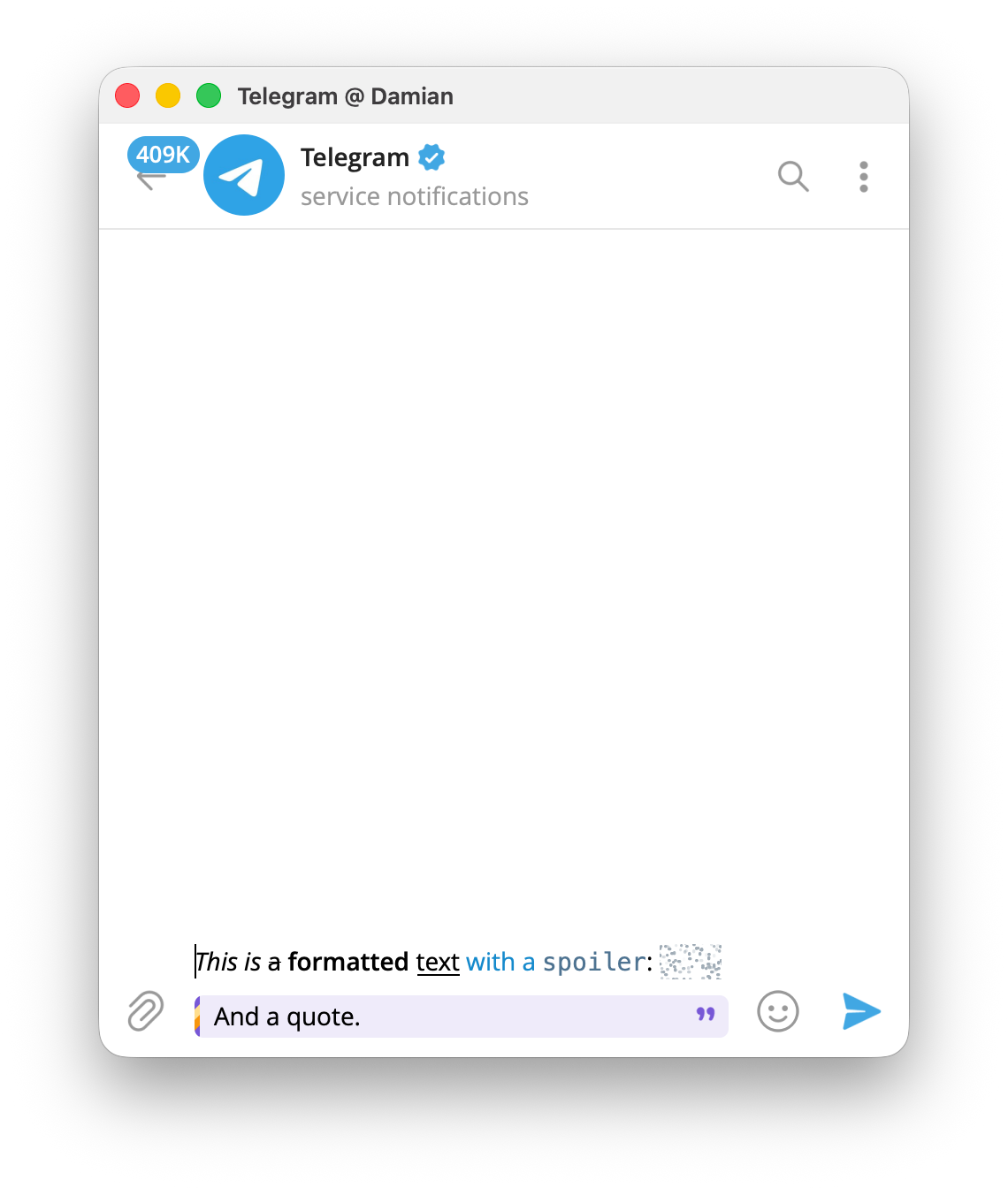
Format text before sending on desktop
- Open the chat, group, or channel where you can post. Type the complete message in the message field. Formatting is easier when the wording is already in place.
- Select the exact words. Click and drag across the text you want to change.
- Open the formatting menu. Right-click the selected text, then choose Formatting in Telegram Desktop. If your Telegram app uses a different label, choose its format option.
- Choose the style. Select Bold, Italic, Underline, Strikethrough, Monospace, Spoiler, Quote, Date, or Create Link / Link.
- Confirm the style in the composer, then send the message.
On Windows and Linux, Ctrl+B makes selected text bold and Ctrl+I makes it italic. The menu is the safest route for the other styles and for Mac, where Telegram's two desktop apps do not use the same shortcuts.
Format text before sending on mobile
- Type the message in the chat field.
- Press and hold a word, then drag the selection handles until they cover the text you want to format.
- Open the extra formatting options. On Android, use the three-dot menu in the selection bar. On iPhone and iPad, tap Format; if it is not visible, tap the arrow in the selection menu first.
- Choose a style, then send the message.
The wording of the menu can change slightly between app versions. The shared sequence is simple: select the text, choose its format, then send the message.
Add formatted messages to an InviteMember project
This section covers formatted messages the membership bot sends. If you are setting up a new membership bot, create the InviteMember project and connect the bot before you use either message route. When InviteMember asks you to send a broadcast or custom-command reply, write and format the message in Telegram before you send it to the bot.
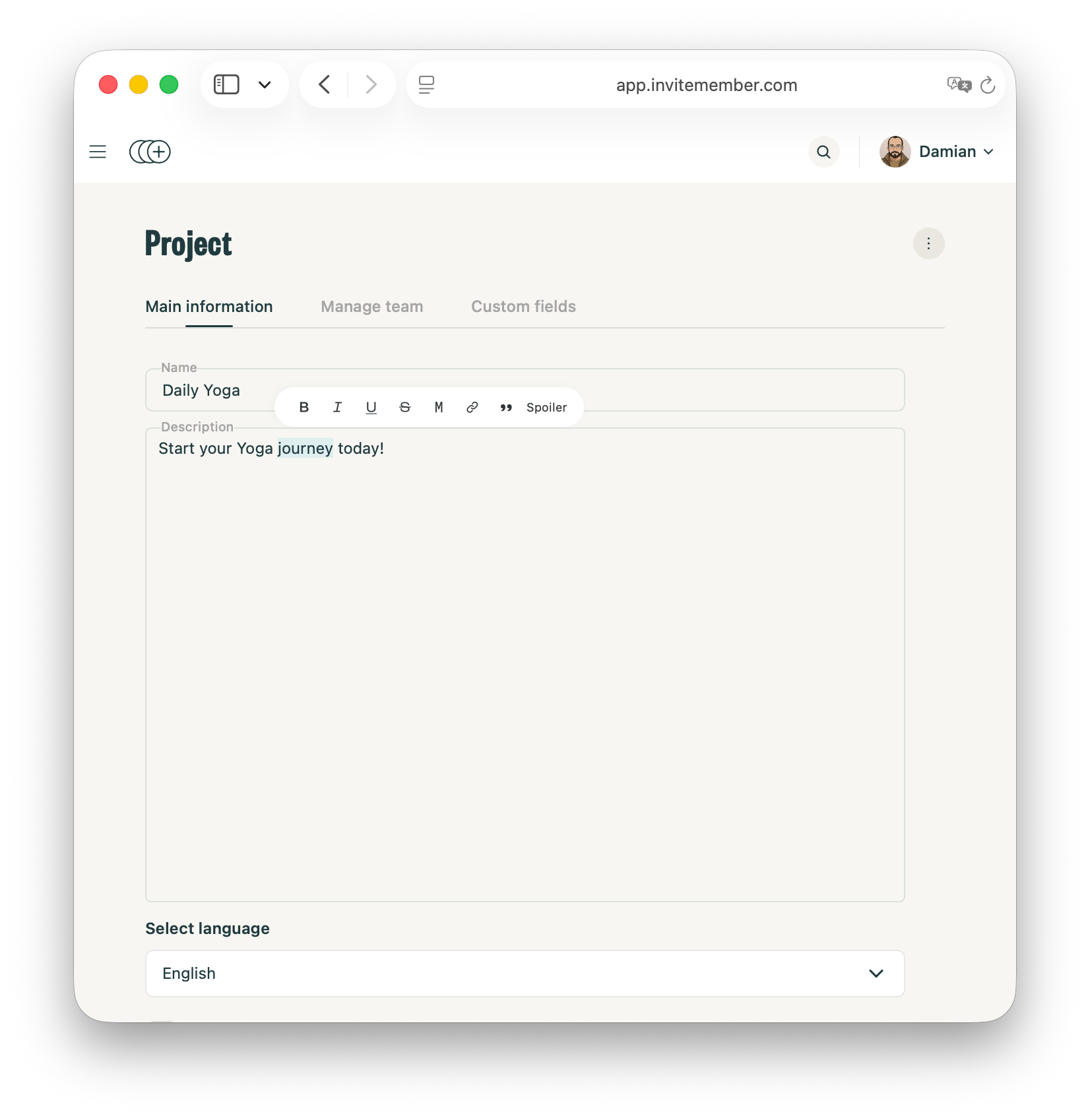
Edit the membership text in the Dashboard
Use the Dashboard for the words that explain the membership. These editors are separate from Telegram's message composer: a project or plan description explains the offer, while a broadcast or custom command delivers a formatted message to people in Telegram.
- Change the project description. Open Settings > General, update Description, then select Save changes. Use this for the overall promise of the project and the main benefit members receive.
- Change a plan description. Open Settings > Subscription plans, select the plan, then choose Edit. Update its Description and select Save. This is where you explain what that particular plan includes.
- Change a group or channel resource description. Open Settings > Resources, select the connected Telegram group or channel, update its Name or Description, then select Save changes. This explains the included resource in the project.
The resource description is not the Telegram group or channel's own profile description. Change that native Telegram text inside Telegram. Use a broadcast or a custom command whenever members need to receive a message with Telegram formatting.
Send a formatted broadcast
Use a broadcast when the same update should reach people who have already started your membership bot.
- Open the project's membership bot and send
/b./broadcastopens the same audience picker. - Choose the audience. Pick Leads, Trialing (no-CC only), Active customers, Past customers, All users, or Custom.
- Send the finished message when the bot asks for it. Select the words that need bold text, a spoiler, a quote, monospace, or a named link before you send the message to the bot. You can also add media.
- Check the preview, then select
Yes. InviteMember sends the formatted message to the selected people.
Use this for a renewal reminder, a plan change, a scheduled event, or a return offer.
Create a formatted answer with a custom command
Use a custom command for an answer people may need more than once, such as a schedule, support route, FAQ answer, or link to a resource.
- Open the project's membership bot and send
/set_command. - Send the command name when the bot asks. For example, use
/schedulefor a command that shows the next session dates. - Send the command reply when the bot asks for the answer. Write the full response in Telegram, select the parts that need formatting or links, and send it.
- Send the short command description. InviteMember adds the command to the bot's Telegram command menu.
Members can then send or tap /schedule and receive the formatted reply. A command reply can include formatted text, links, and other commands.
Keep individual support replies simple
Built-in support is for the back-and-forth conversation after a member writes to the membership bot. Those replies deliver text, but Telegram formatting and inline links are ignored. Put a repeatable, formatted answer in a custom command or broadcast; use the support chat for the personal follow-up.
Choose the style that helps the reader
Formatting should help the reader find the important part of a message faster.
Bold: one action or fact that must stand out
Live session starts at 18:00 UTC. Join from the event link below.
Use bold for a deadline, changed time, one price, or one instruction. Keep the rest of the message in regular text so that detail still stands out.
Spoiler: an answer people can choose to reveal
Spoiler formatting covers the selected text until each reader taps or clicks it. It suits a quiz answer, a match result, or a plot detail.
For a quiz post, type Today's answer: Lisbon, select only Lisbon, and choose Spoiler.
Use a spoiler when the hidden part is the point of the post. It does not restrict access to the text. Anyone in the chat can reveal it.
Quote: a separate instruction, source, or previous statement
Select part of your own draft and choose Quote when that text should sit apart from the rest of the message.
Please send your question in one message and include your order number.
Add your explanation below it. Quote blocks work well for a repeated rule, a short source, or a customer instruction.
A quote block and a quote reply have different jobs. A quote block formats text in your own draft. A quote reply answers a specific line in somebody else's message. On desktop, click and drag over the line. On mobile, press and hold it, then drag over the words. Choose Quote, then write the reply. Telegram places that selected line above your response.
Monospace: commands, codes, and short values
Use monospace for text people may need to copy exactly.
Send /plans to view the available options.It also works for a coupon code or short reference number. Use it for a precise value that readers may need to copy.
Named links: give the click a clear label
Select the words that describe the destination, choose Create Link, and paste the address. Readers then see a useful action instead of a long URL.
For example, write View the workshop schedule instead of pasting a raw link after a long sentence. The label should tell the reader where the tap will lead.
Date: show an event time in each reader's time zone
Date creates a clickable event time. Use it when people in more than one time zone need to join the same session, stream, call, or deadline.
- Type a clear event time in your draft. For example:
Live Q&A: Thursday, 20:00. - Select the time, then choose
Date. On Telegram Desktop, it is in the Formatting menu below Link. - Choose the event moment in the picker. Telegram opens a calendar picker and saves one specific date and time with the message.
- Read the result before you send. Every recipient sees that same moment in their own local time zone.
The date is also a useful action. A reader can tap or click it to add the event to a calendar or set a reminder. Date does not schedule the message itself; the message still sends when you press Send. It only makes the event time inside the message clearer.
Italic, underline, and strikethrough: use them sparingly
Italic adds a light emphasis. Underline can point out a label. Strikethrough shows that a time, price, or item has been replaced.
~~Friday at 17:00~~ Saturday at 17:00
Clear lines and one direct action usually do more than a message with many styles.
When a coded bot sends the message
The selection menu also works when you configure an InviteMember broadcast or custom-command reply. A bot built in code uses a different route: its editor or code creates the formatting with Markdown or HTML. For formatted customer-support replies, see Telegram rich text for bots and formatted bot messages.
Format the message for the place where people will receive it
For a paid community, make the first line say what changed, use Date for an event time that members will see locally, and give one next step. When only selected members need the update, choose the right InviteMember broadcast audience before you send it.
The same approach improves a first message. Put the one action a new member should take near the top, then use bold only for the detail that helps them take it. Set the native welcome message in the group or channel itself.
A simple format for an announcement
Use this order for an update that asks people to do something:
- Start with the change: The November workshop is now open.
- Add the event moment with Date, so Telegram shows it in each reader's local time.
- Put one supporting instruction in a quote block if needed.
- Add one named link, command, or direct next step.
Readers can scan this in a few seconds and act without hunting through the post.
FAQ
How do I make text bold in Telegram?
Type the message, select the words, open the formatting menu, and choose Bold. On Telegram Desktop for Windows and Linux, you can also select the text and press Ctrl+B.
How do I hide text as a spoiler in Telegram?
Select the words in an unsent message, open the formatting menu, and choose Spoiler. The reader taps or clicks the covered text to reveal it.
Can I add a link behind words in Telegram?
Yes. Select the words, choose Create Link, and enter the address. Use words that describe the destination, such as Open the registration form.
What does Date do in Telegram's formatting menu?
Date attaches one specific event time to your message. Select the time in an unsent message, choose Date, and choose the event moment in the picker. Telegram shows that moment in each reader's local time zone. Readers can tap it to add the event to a calendar or set a reminder. It does not schedule the message itself.
Is Telegram Markdown needed for normal messages?
No. The selection menu is the direct route when you write a message yourself. Markdown and HTML matter when a bot or a developer tool sends the message.

