

A Telegram channel is already a broadcast feed: a post appears inside the channel for its subscribers. A bot broadcast is different. It arrives in each person's private chat with that bot.
For a subscription business, an InviteMember project can message people who launched the membership bot using their current or past membership state: Leads, Trialing (no-CC only), Active customers, Past customers, or a Custom list.
A broadcast is not only for paid members. It can give a lead the first purchase route, help a trial user take the next step, update active customers, or invite former customers back. People who stopped or blocked the bot will not receive it.
Choose the broadcast route
| You need to reach | Use | Who can receive it |
|---|---|---|
| Everyone following a channel | A channel post | The update appears in the channel feed. |
| Users of a separate SUCH bot | A standalone SUCH-bot broadcast | People who started that specific SUCH bot; choose All or Custom. |
| People at different stages of an InviteMember project | An InviteMember membership-bot broadcast | People who launched that membership bot; choose a project-status audience or Custom. |
A standalone SUCH bot and an InviteMember membership bot are separate Telegram bots with separate audiences. In a standalone SUCH-bot chat, send /broadcast, then choose All or Custom.
Use the InviteMember membership bot when the message depends on a person's plan, trial, payment history, or former-customer status. InviteMember membership bots already include SUCH for support, so a member can write to the same bot after receiving an update.
Choose the Telegram broadcast audience first
| Audience in the membership bot | Who receives it | A useful reason to use it |
|---|---|---|
| All users | Everyone who has launched the bot | A project-wide change for every reachable bot user. |
| Leads | People who have never made a payment | Share one first offer: a free trial, a coupon, or a special plan for newcomers. |
| Trialing (no-CC only) | People who started a no-card free trial and have no payment or recurring subscription | Explain the next step before their trial ends. |
| Active customers | People with an active payment or recurring subscription, including card-backed trials | Announce a resource, benefit, or change they can use now. |
| Past customers | People who were customers before | Offer a clear return route, such as a plan made for past customers. |
| Custom | The Telegram user IDs you provide | Send one carefully chosen update to a small, verified list. |
The two trial rows are easy to confuse. A person on a free trial without a card belongs in Trialing (no-CC only). Card-backed trial subscriptions are included in Active customers.
The Past customers label in the broadcast menu corresponds to the Churned list in the InviteMember dashboard: these are people who paid before, or used a free trial or plan, but do not have an active subscription now.
Send a Telegram broadcast from your membership bot
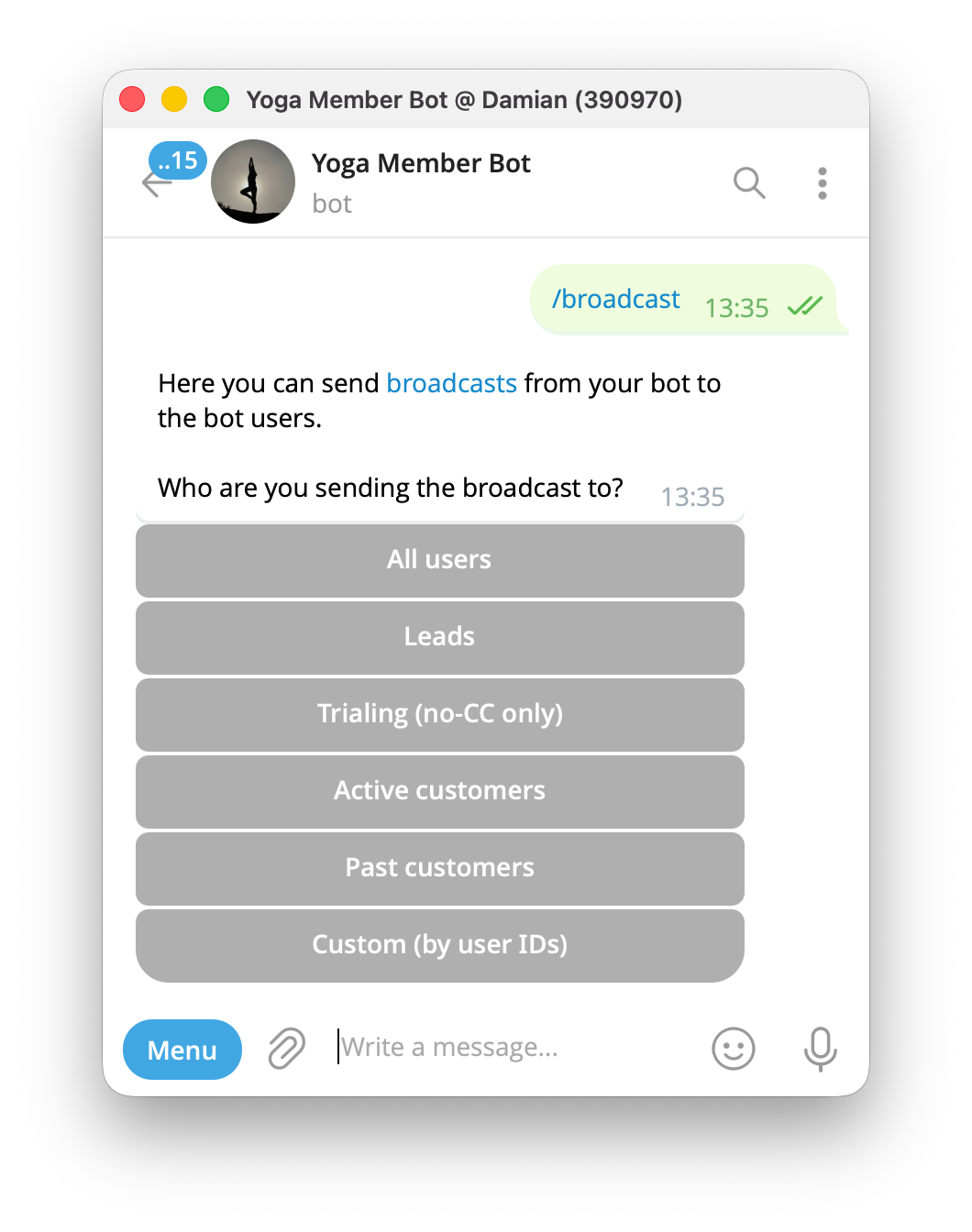
- Open the project membership bot and enter
/b. This opens the broadcast audience picker./broadcastopens the same picker. - Select the audience that matches the message. Choose Leads, Trialing (no-CC only), Active customers, Past customers, All users, or Custom. Do not use All users for a change that only affects paying members.
- Send the finished message to the bot. Add the text, formatting, image, video, file, voice message, or other media the audience needs. Give the recipient one next action.
- Read the preview before confirming. Check the wording, media, and every command in the preview. A confirmed broadcast cannot be edited or deleted from recipients' chats.
- Select
Yes. InviteMember starts sending the message as soon as possible, usually within a few minutes.
Give each recipient one next action
The commands /plans, /status, and /affiliate become clickable inside an InviteMember broadcast.
- Put
/plansin a message to Leads when they need to view the available membership plans. - Put
/statusin an Active customers message when a member needs to check their own subscription before asking for help. - Put
/affiliatein an affiliate-program message so the recipient can open the program from the bot.
For a return offer, send the broadcast to Past customers and link the message to the option they can use. A plan set to past customers only keeps the offer for people who have paid before.
Send a Custom broadcast to a known list
Use Custom when the membership state alone is not enough. For example, you may need to tell a small list of people about a corrected one-time payment, a special access arrangement, or a change that applies only to them.
- Open the project dashboard, then select
Users. Use the list and search control to find the people you intend to contact. - Open each user's profile and copy the Telegram ID. The profile shows the user's membership details and Telegram ID.
- Return to the membership bot and enter
/b. Select Custom in the audience picker. - Paste the selected Telegram IDs when the bot asks for the list. Send the list, inspect the preview, and select Yes.
The dashboard helps you build the list. It does not show a payment processor's failed-charge details, so use the payment processor when the reason for the message depends on a particular failed payment.
Let people ask for help after the broadcast
A broadcast is a one-way message when you send it. A recipient who writes a normal message to the membership bot can open a support request for your team.
InviteMember routes that request to SUCH, where a team member can reply through the membership bot without exposing a personal Telegram account. Providing customer support with a Telegram bot covers the support side of that conversation.
For an update that may create individual questions, state the action that applies to everyone and let members write to the bot about their own situation.
FAQ
Is a Telegram broadcast the same as a channel post?
No. A channel post appears in the channel. A membership-bot broadcast is sent to people who previously launched the bot, so it can use their membership state to select the audience.
Who receives a membership-bot broadcast?
Only people who launched that project’s membership bot can receive it. Someone who stopped or blocked the bot will not receive the message.
Can I change a broadcast after I select Yes?
No. Check the preview before confirmation. Once the broadcast has been confirmed, recipients' copies cannot be edited or deleted.
Why does the dashboard say Churned but the broadcast menu says Past customers?
Both names describe former customers who paid in the past but are not active now. Use Past customers when you choose the broadcast audience; use Churned when you find that group in Dashboard > Users.
Does Trialing include every free trial?
No. Trialing (no-CC only) is for free trials without a card. Card-backed trials are included in Active customers.

