

When the same membership offer appears in a Telegram post, a Story, an advertisement, and a partner message, a sale alone does not tell you which promotion worked.
A separate campaign link for each placement solves that problem. It keeps the normal membership path in place while identifying the promotion that led to the result.
In InviteMember, this is handled through Marketing Channels. Create one channel for every placement you want to compare, then use its attribution link in that placement. The channel results show whether it brought signups, customers, and revenue.
Choose the right reporting tool
| Your question | Use this | What it shows |
|---|---|---|
| Which post, profile, ad, or placement brought results? | Marketing Channels | Signups, customers, revenue, and the available cost and return fields for one attribution link |
| What do people do on the membership page before they sign up? | Google Analytics | Visitor activity in your own Google Analytics property |
| Which partner should receive commission credit? | Affiliate Program | Affiliate referrals, payments, commissions, and payouts |
| What happened after someone entered the project or became a customer? | Dashboard, Users, and Sales | Project users, customer segments, payments, subscriptions, and recurring payments |
These tools answer different questions. Do not try to use a campaign link to assign a partner commission, or Google Analytics to inspect a customer’s subscription.
Create a Telegram UTM link in Marketing Channels
1. Open the project you want to promote. In the web dashboard, open Marketing, then select Channels.
2. Start a new attribution link. Select Add channel. The form opens with an optional Display name and five UTM fields.
3. Name the promotion consistently. Use a display name that makes the placement clear when you return to the report, such as October channel post. Complete the fields that identify the promotion:
| Field | Use it for | Example |
|---|---|---|
| UTM source | The place that sent the person | telegram, instagram, partner_anna |
| UTM medium | The type of promotion | organic, paid, social, email |
| UTM campaign | The launch or offer | october_enrollment, spring_workshop |
| UTM content | The post, Story, or creative inside that campaign | channel_post, story, creative_a |
| UTM term | An additional label when it helps your reporting | yoga_beginners |
Use the same spelling and capitalization every time. A report is only useful when the labels for the same promotion match.
4. Add the channel and share its attribution link. Use the link InviteMember creates in that one post, profile, advertisement, or partner placement. Create another Marketing Channel when you want to compare another placement.
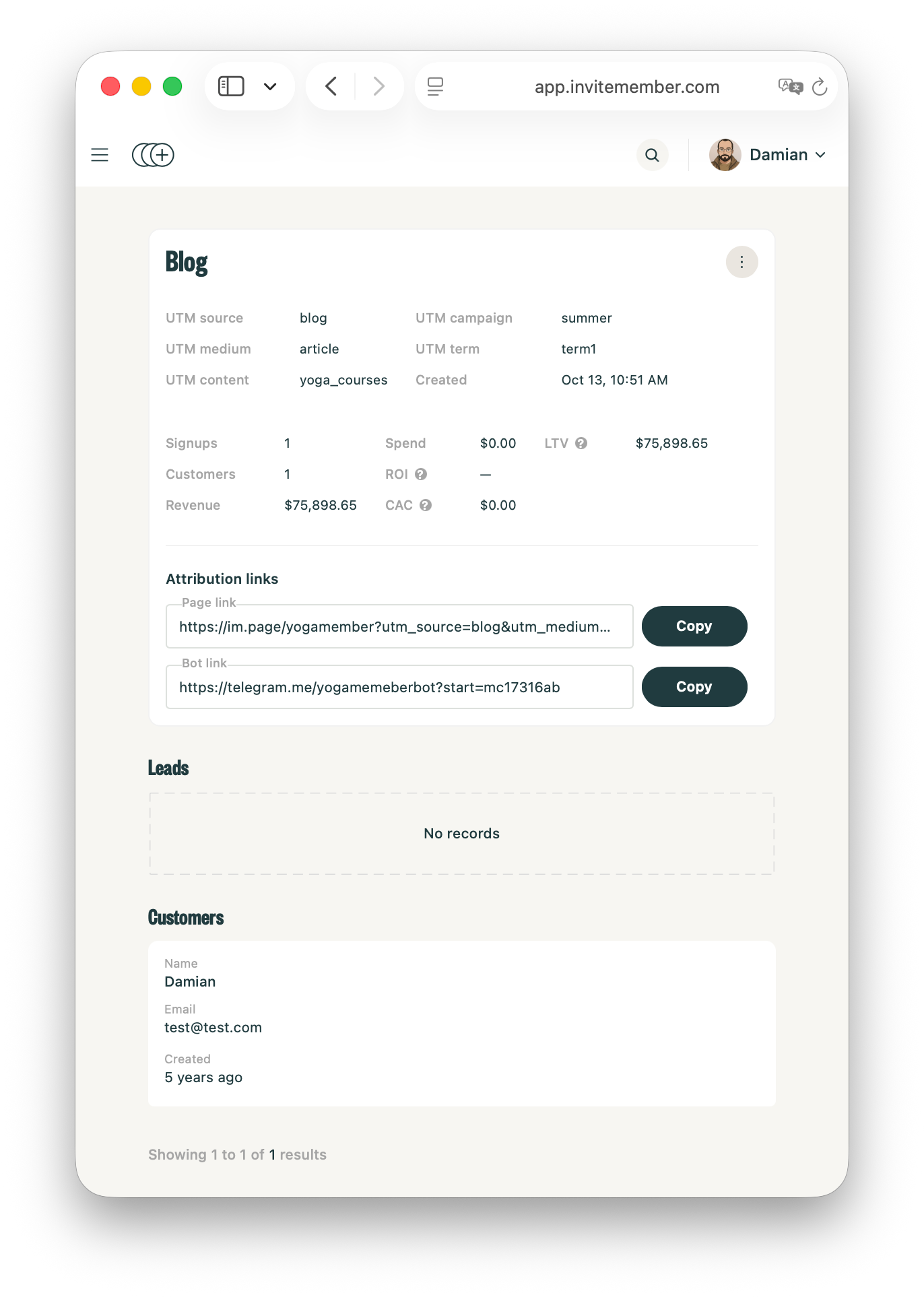
For example, a public channel post and a Telegram Story can both use october_enrollment as their campaign. Give one channel_post and the other story as content so their results stay separate.
Read the campaign results
Return to Marketing > Channels after people have had time to act on the promotion. Each channel row includes:
- Signups
- Customers
- Revenue
- Spend
- ROI
- CAC
- LTV
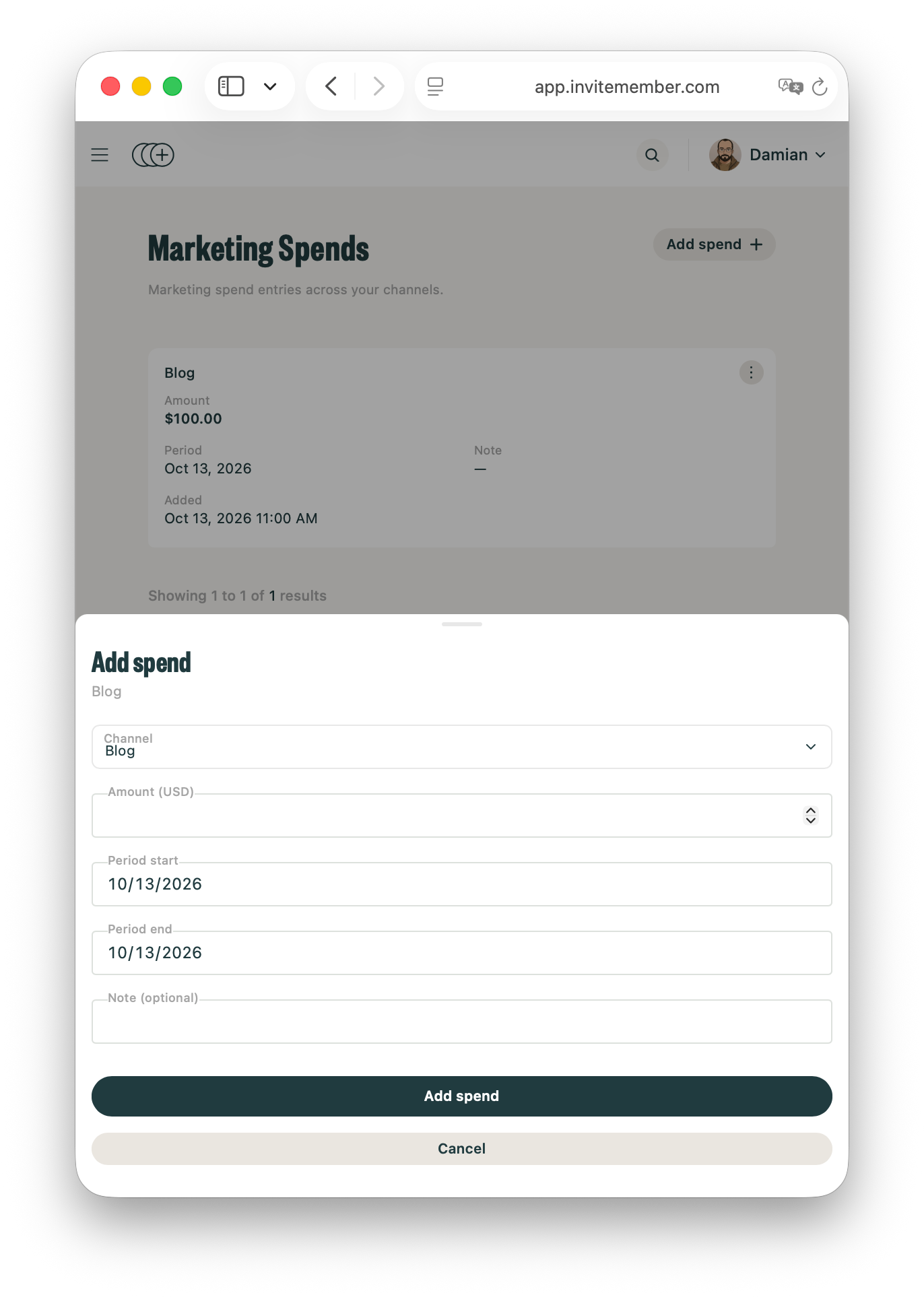
The project also has Marketing > Spends, where marketing spend entries are listed across channels. Use the status control in Marketing Channels to keep the report focused on the channels you are currently using.
Start with the direct comparison: which placement brought more customers and revenue? Then look at the cost and return columns when they apply to your campaign. Do not judge an ad from its views or reactions alone when the campaign result is available.
Keep payment and access on the membership path
An attribution link is for promoting a membership project. It does not change the plan, payment option, subscription, or protected resource. Let people continue through the membership route configured for your project.
Do not replace that route with a normal Telegram group or channel invite link. A chat invite link is for entering a chat. It does not give the Marketing Channels report the campaign result, and it bypasses the normal membership purchase path.
When the promotion needs a selected plan, discount, giveaway, or code-only route, set that offer up first. See how to create special membership offers and promotions for the plan rules, then use the correct attribution link to promote it.
Use Google Analytics, affiliates, and project records for their own jobs
To track membership-page visitors before signup, open Settings > Membership page and add your Google analytics ID. Visitor activity then belongs in your Google Analytics property. It is not shown as a Google Analytics report in InviteMember.
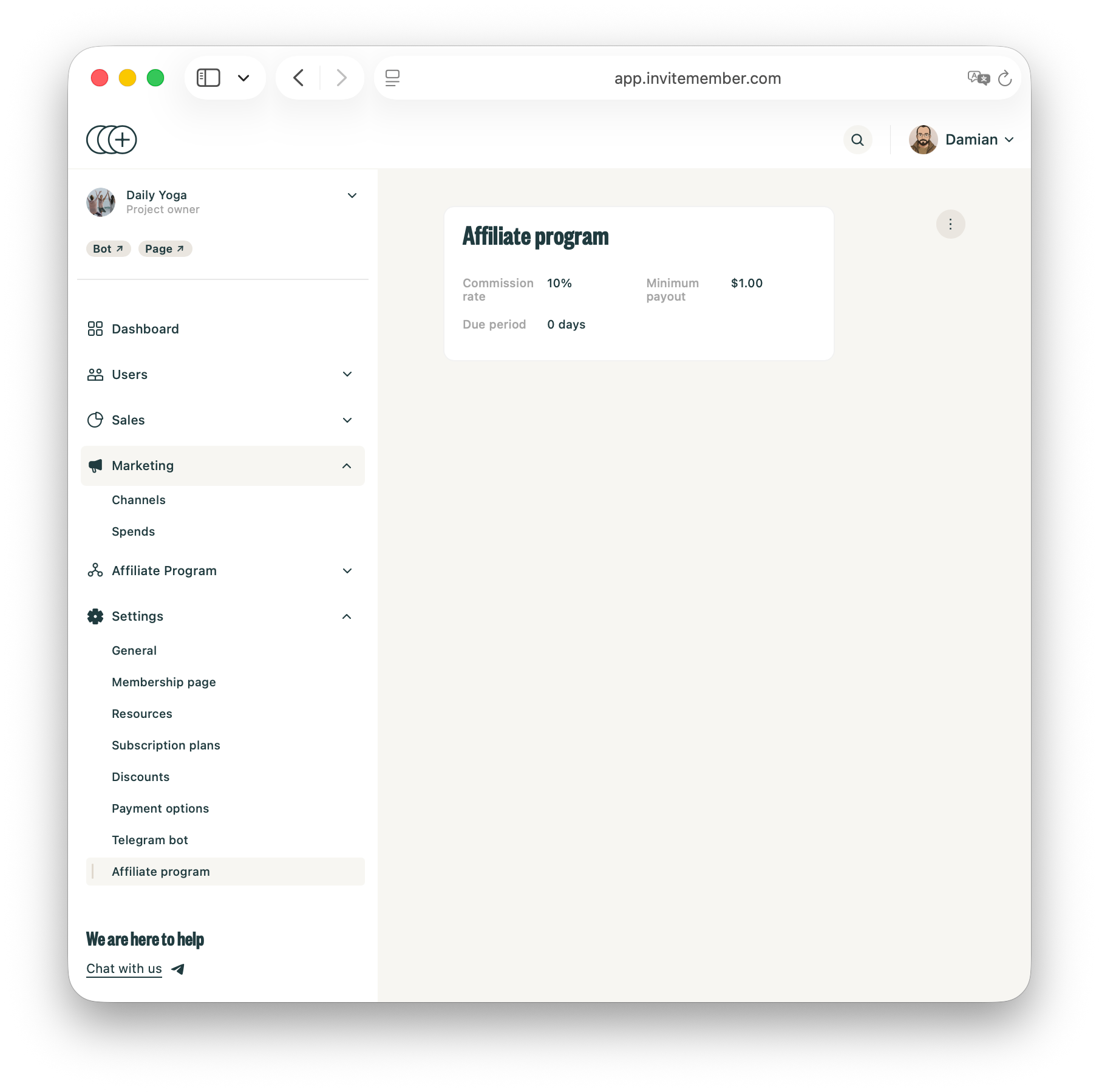
Use the Affiliate Program when someone else is promoting your membership and needs commission credit. Its Affiliates, Commissions, and Payouts areas are separate from Marketing Channels. Read how to run an affiliate program in Telegram before you give a partner an affiliate link.
After people arrive, use the project dashboard to compare Bot users, Volume from sales, One-time payments, and Recurring payments. The Users area separates All Users, Leads, Customers, and Churned. Sales has separate lists for One-time payments, Subscriptions, and Recurring payments.
For a paid Telegram placement, see how Telegram sponsored messages work before you publish the Marketing Channel link in an ad.
FAQ
Can I use a normal Telegram invite link as a campaign link?
No. Use the attribution link created for the Marketing Channel. A normal group or channel invite link is for access to that chat, not for the membership campaign report or payment path.
Do I need a separate Marketing Channel for every post?
Create a separate channel for every placement you want to compare. Use the same campaign value for one launch, then change the content, source, or display name so the report can distinguish the placements.
Can Marketing Channels replace Google Analytics or the Affiliate Program?
No. Marketing Channels compares attribution-link results. Google Analytics shows membership-page visitor activity in your Analytics property. The Affiliate Program assigns referral credit and handles commissions and payouts.

