
Telegram Checklists keep one shared task list inside a chat. The group can see every task and which ones are done.
Use a checklist for a short group task with a clear finish: preparing a live session, collecting course files, or checking an event.
Checklists are a Telegram Premium feature. A Premium account creates the list. A person also needs Premium to add tasks or mark a task as done, even when the list allows other people to do those things. Do not use a shared Checklist for work that non-Premium members need to update. Use a pinned message for fixed instructions or a Topic to discuss the work instead. The Telegram Premium overview explains the wider subscription.
Choose the right Telegram tool
| You need to | Use | Why |
|---|---|---|
| Track a small set of jobs that people need to complete | A Checklist | It keeps the task names and what is done together in one group message. |
| Keep rules, a link, or a guide available for later | A pinned message | The information stays easy to find, but people do not check items off. |
| Keep several continuing conversations separate | A Topic | Each subject has its own conversation. Telegram Topics are not a task list. |
A Checklist works best when the group needs to see one changing answer: which jobs are still open?
Create a Checklist in a Telegram group
Before you make the list, confirm that every person who will add items or mark work complete has Telegram Premium. The switches in the checklist control what other people may do, but they do not remove the Premium requirement.
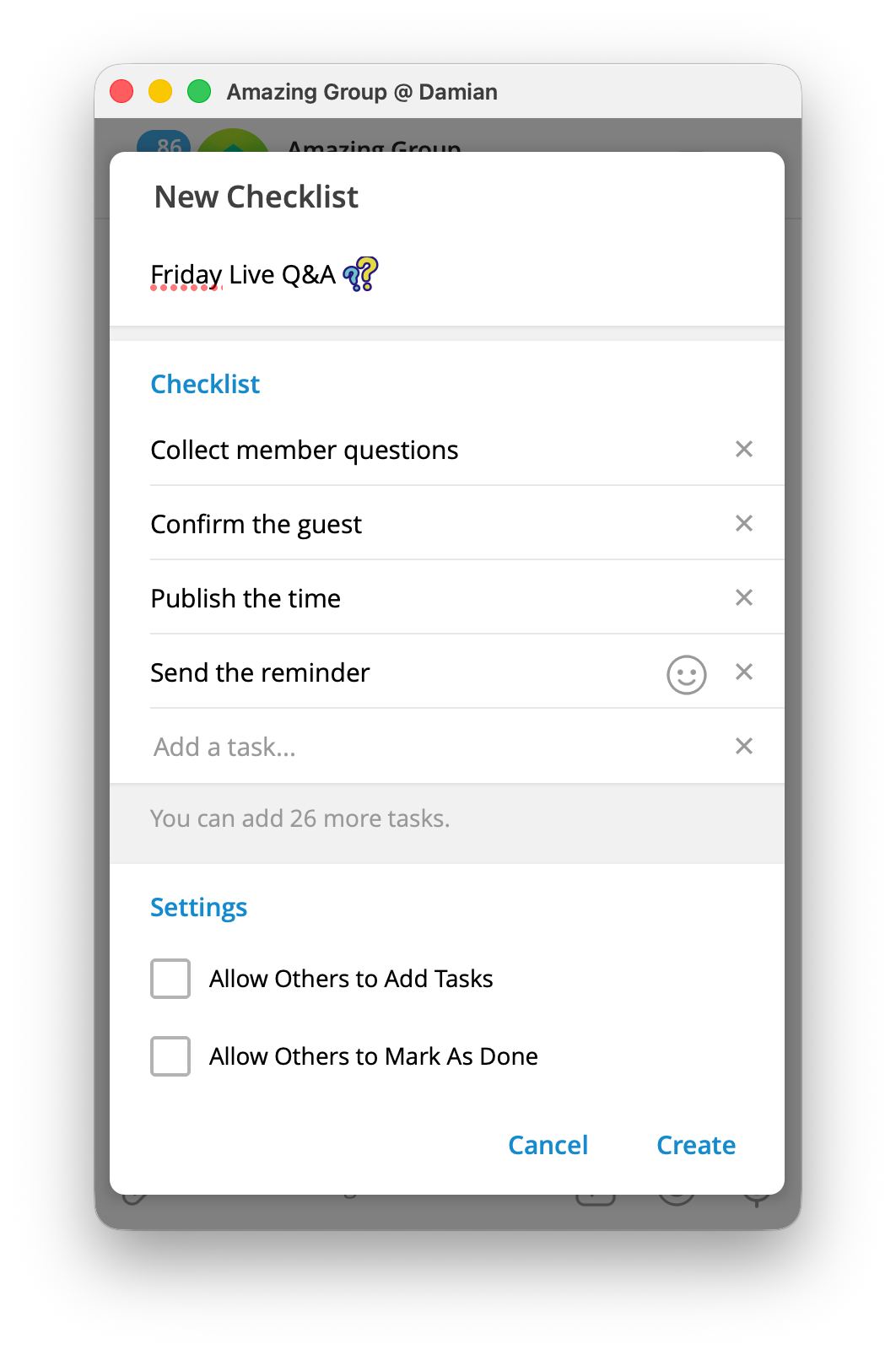
- Open the target group and open the attachment menu. Go to the message field at the bottom of the group. On Telegram Desktop, select the paperclip. In the mobile apps, tap the attachment button beside the message field.
- Select
Checklist. The attachment menu opens the New Checklist screen. - Enter the list name and first task. Fill in Title with the outcome, such as
Friday live session. Fill in Task with the first job, such asPublish the session link. - Add the remaining jobs. Select Add a Task, enter the next job, and repeat until every job has its own line.
- Choose the collaboration controls. Turn on Allow Others to Mark As Done when other Premium members should tick completed work. Turn on Allow Others to Add Tasks only when they should be able to extend the list. These are separate controls.
- Post the list. On Telegram Desktop, select Create Checklist. In the mobile apps, select Send. Telegram sends the Checklist to the group as a message.
- Check the group experience. With another Premium member, mark one item complete and, if enabled, add a test task. This confirms both controls work.
Choose who can change the list
The controls apply to every other Premium member who can use the list. They do not assign a task to a specific person.
| Situation | Allow Others to Mark As Done | Allow Others to Add Tasks |
|---|---|---|
| You are publishing a fixed setup list and will maintain it yourself | Off | Off |
| Members should report that their part is finished, but the list is final | On | Off |
| A small Premium team is collecting jobs and completing them together | On | On |
For a large group, keep Allow Others to Add Tasks off unless everyone is meant to shape the list. Otherwise, use a Topic for discussion and let a moderator update the Checklist.
Change or remove a Checklist later
Open the original Checklist message in the group. On mobile, press and hold the message. On Desktop, right-click it. Choose Edit to open Edit Checklist. There, you can change the title, add or remove tasks, or change the two collaboration switches. Select Save when you are finished.
Edit the original message, not a forwarded copy. A forwarded Checklist cannot be changed. When the work is over, open that same message menu and choose Delete to remove the Checklist from the group.
Use a Checklist for one shared action
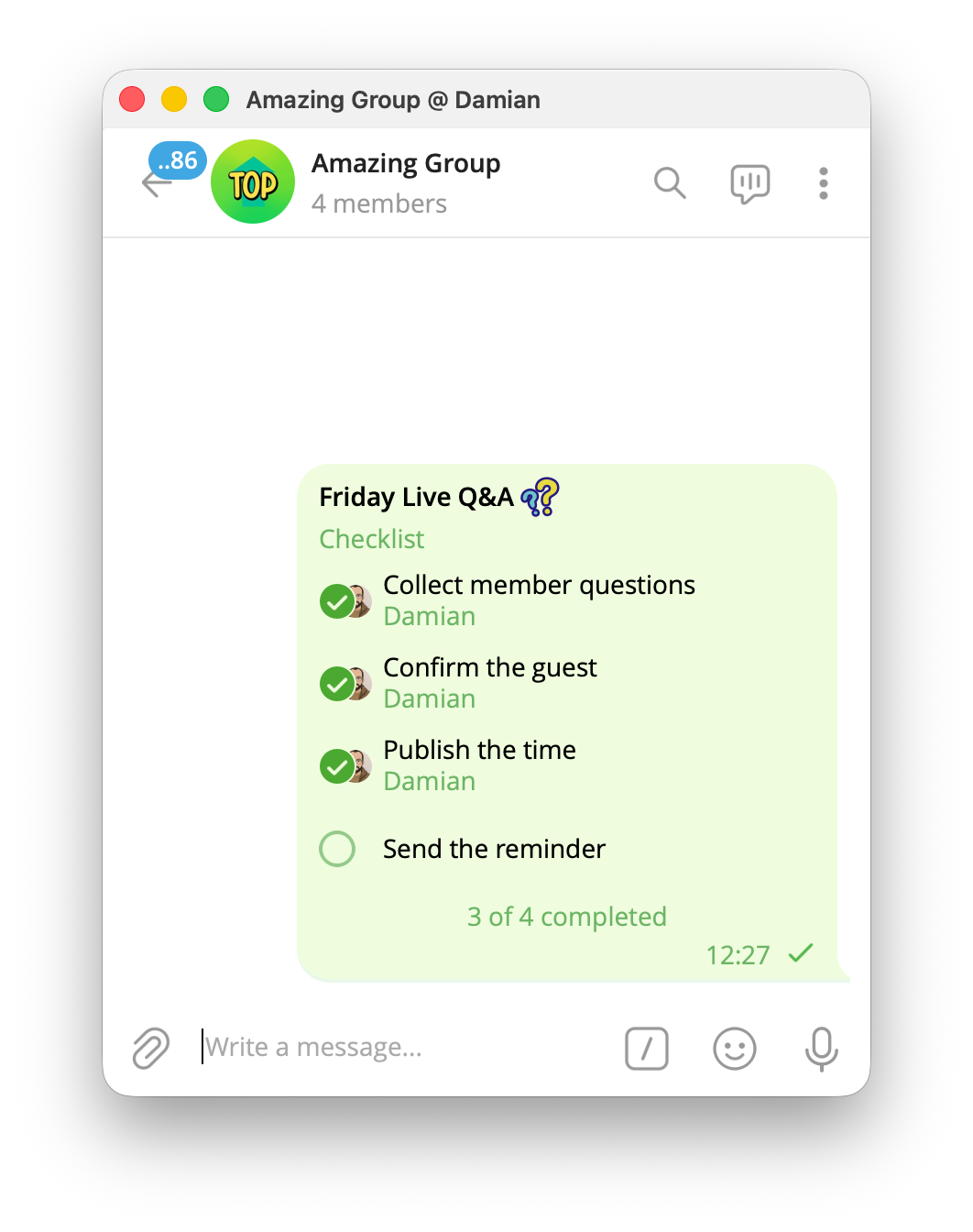
Suppose a group is preparing a live Q&A. The Checklist can contain Collect questions, Confirm the guest, Publish the time, and Send the reminder.
The group can then use the message itself to show progress. Put questions about the event in a Topic, and keep the permanent event rules in a pinned message. Each Telegram object has one job, so members do not have to hunt through the chat to find the current list.
Use Checklists inside a paid Telegram group
Paid access and group work are separate jobs. In an InviteMember project, people enter a protected Telegram group through the project's membership bot or im.page membership page, then use the Join button for the resource included in their plan. InviteMember handles that entry route and removes access when the membership ends.
Once members are in the group, a Checklist can organize a course activity, an event setup, or a member challenge. It does not take payment, decide who may join, or keep a former member in the group. For the full setup before people reach the group, see how to set up a paid Telegram community.
When a Checklist is missing or does not work
- You cannot see
Checklistin the attachment menu: Update Telegram, then check that the account creating the list has Telegram Premium. - A member cannot mark a task complete: Open the original list, check that Allow Others to Mark As Done is on, and confirm that the member has Premium.
- A member cannot add a task: Check Allow Others to Add Tasks on the original list, then confirm that the member has Premium.
- You are trying to change a forwarded Checklist: Return to the original group and edit the original message. Forwarded copies cannot be changed.
- The group needs a long discussion about each item: Create a Topic for the discussion and keep the Checklist for the final jobs only.
FAQ
Can a free Telegram account create a Checklist?
No. Creating a Checklist requires Telegram Premium.
Can a free Telegram account add tasks or mark them complete?
No. A Premium account is required for both actions, even if the Checklist allows other people to do them.
Can I use a Telegram Checklist in a channel?
No. Create Checklists in groups, one-to-one chats, and Saved Messages. Use a group when several people need to update the same list.
Does a Telegram Checklist control paid membership access?
No. A Checklist is a message inside the chat. In a paid community, membership access belongs to the payment and Join-button flow.

