

Telegram Communities connect separate groups, channels, and bots under one name. They help people move between related chats without turning those chats into one large group.
How people enter a Telegram Community
Start with one linked chat. A person joins a group or channel, or starts a bot, through that chat's normal route, such as a public username, an invite link, or an approved join request. When that chat belongs to a Community, the person also becomes a Community member.
Being a Community member does not join the person to every chat in it. It gives them a Community overview where they can see the chats Telegram makes available to them. They join each visible chat separately, or send a request when that chat requires approval.
That is why a Community is not a one-link bundle that gives everyone access to everything. Use a linked chat as the first place people enter. Then use the Community to help them find the other chats they can join.
If you are deciding what that first chat should be, a Telegram channel or group serves a different purpose: a channel is for publishing, while a group is for conversation.
Create a Community
You need at least one group, channel, or bot that Telegram allows you to add.
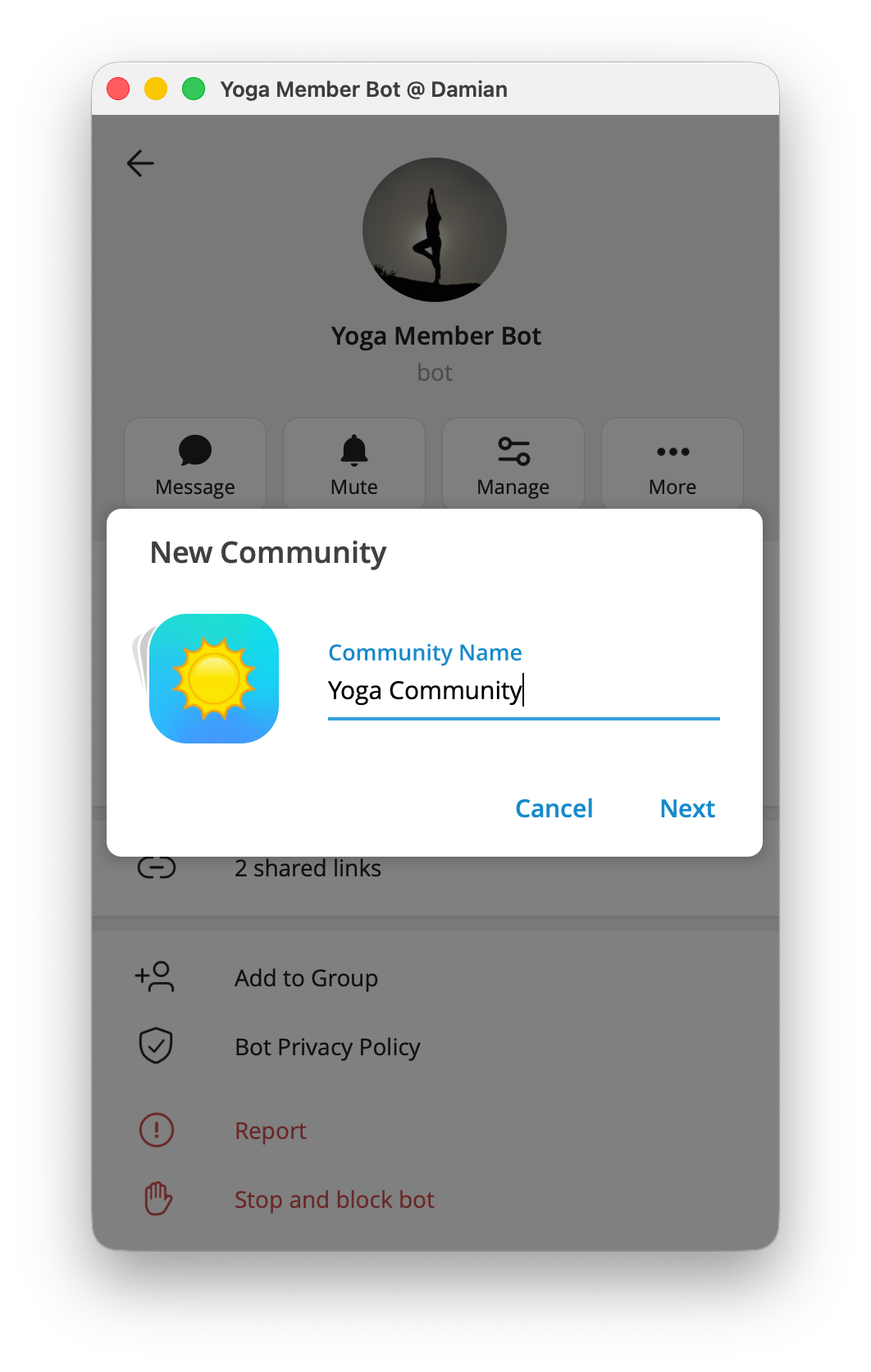
- Open that chat's profile and then its management controls.
- Choose Add Group to a Community, Add Channel to a Community, or Add Bot to a Community. The exact menu name can vary by Telegram app; on Desktop, it may be inside Manage.
- Choose Create Community, or select one, enter the Community name, and finish the setup. Telegram connects the chat to the new Community.
The Community overview is the place to return to later. Do not rely only on the notification Telegram sends when a chat is added.
Find a Community again
Two routes work together.
From a linked chat: Open the group, channel, or bot, open its profile, and select the Community card. This is the clearest route when you know one of its chats.
From Search: The result depends on Show as One Chat.
- With Show as One Chat on, Telegram groups the linked chats into one Community item in the main chat list. Searching the Community name can show that combined result, often with several linked chat names in its preview. Open it to reach the Community overview.
- With Show as One Chat off, Telegram keeps the linked chats as separate items. Search may then show those individual chats instead of the combined Community entry. Open one of them and use its profile card.
The toggle changes the chat-list and Search display. It does not merge message histories, change who can join a chat, or give anyone access to chats they have not joined. The difference is easiest to see after returning to the main chat list or searching again, not while staying on the Community overview.
Add chats and choose who can add them
From the Community overview, use Add a Chat to Community to connect another group, channel, or bot. You can also start from the chat you want to add and choose its matching Add [type] to a Community action.
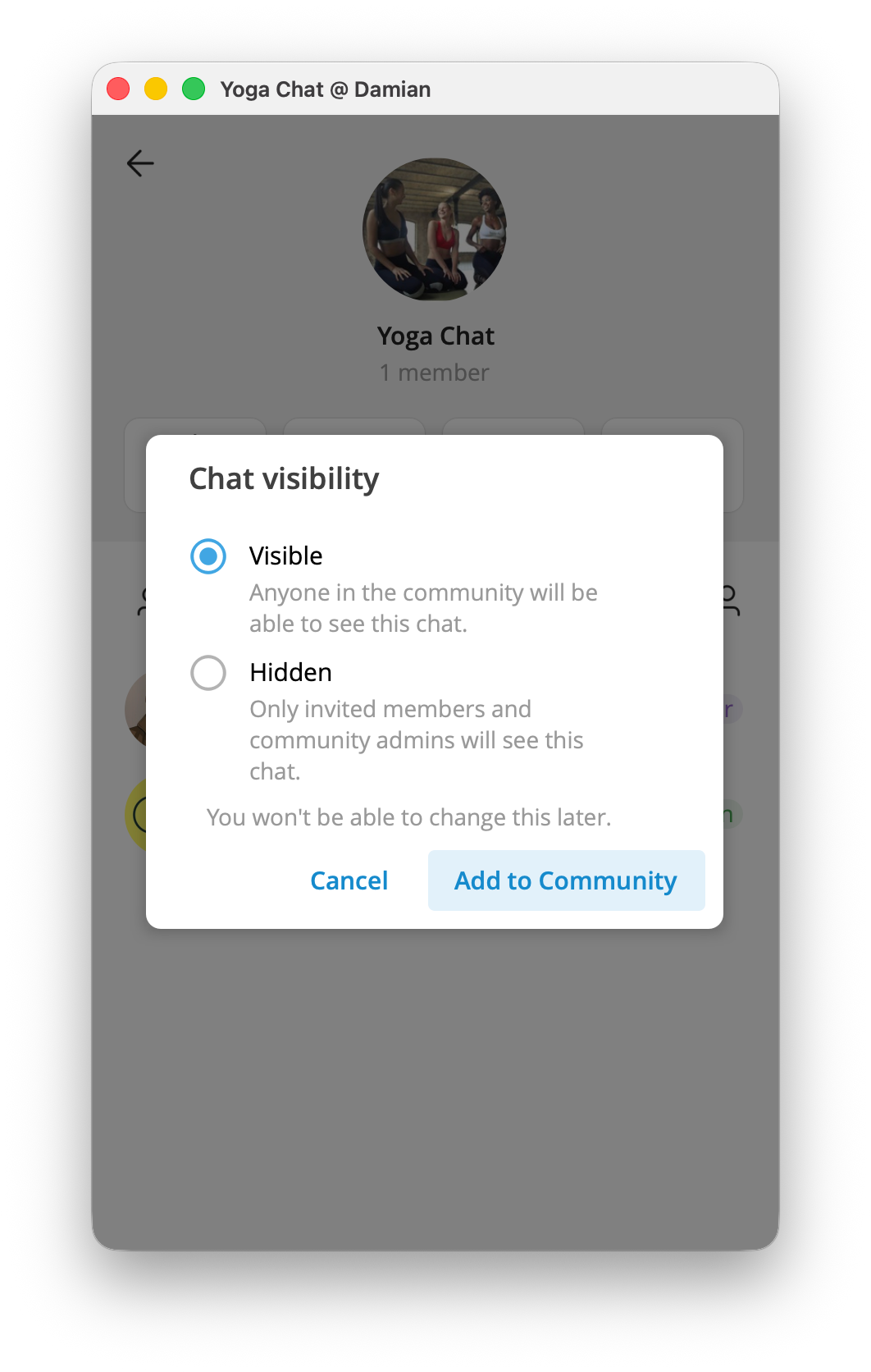
For each linked chat, choose whether it is Visible or Hidden:
- Visible chats appear in the Community overview for Community members. A visible chat can still require a join request or another access check.
- Hidden chats do not appear for regular Community members. Community administrators and people who already belong to that chat can still see them.
To change who can add chats, open Manage or Edit Community from the Community overview. With All members, a Community member may add a chat Telegram allows them to add. With Only admins, member additions become suggestions for Community administrators to review in Pending Requests.
Remove a chat with Remove [type] from Community when it no longer belongs in the set. Removing it disconnects the chat from the Community; it does not delete the group, channel, or bot.
What Community members and administrators control
The overview can separate chats into areas such as Chats you are in, Chats you can view, and Chats you can request to join. The exact labels can differ slightly by Telegram app, but the idea is the same: the Community helps people discover related chats, while each chat keeps its own membership and join rules.
Community administrators manage the shared Community, not only one linked chat. Telegram's Community-level controls can apply a ban across its linked chats. Give this role only to people who should manage the whole set. Use an individual group or channel admin role when someone only needs to run that one chat.
Communities are also different from Telegram Topics. Topics split conversations inside one group. Communities connect separate chats that keep their own messages and access rules.
Keep paid access outside the Community layer
Keep InviteMember-managed paid resources as individual plan resources. How to Start a Paid Community on Telegram or Discord explains the separate work of setting up a paid membership.
You can build a community with a membership bot, a public group and channel, and keep your paid resources private as members only area in Telegram.
Telegram Communities link existing groups, channels, and bots. They are not a new group where people chat, and they are not a shareable membership page. Think of a Community as a directory that connects separate Telegram chats around one topic.
A person first joins one of those chats in the usual way: through its public username, invite link, join request, or a direct add. Telegram then treats them as a member of the Community. From the Community page, they can discover other Visible chats and join those one at a time. Joining one chat never adds them to the rest.
Communities are not owner-only. Anyone already in a linked chat can open the Community and use it to browse the available chats. The owner controls which chats are linked and who can add more.
Communities help people who are already in one related chat find the others. They do not replace individual chat memberships, invite links, administrators, or access rules.
How people enter and use a Community
Telegram does not currently provide a Community-level link to share. Share the public username or invite link for one linked bot, group or channel instead. That chat becomes the entry point.
After a person joins that entry chat, they can open its profile and select the Community entry. Telegram's wording and placement vary by app version. The service message posted when a chat is linked is another route during setup. On the Community page, members see three useful sections:
- Chats You Are In: chats they have already joined.
- Chats You Can Join: Visible chats that they can enter immediately.
- Chats You Can Request to Join: Visible chats that require approval.
They choose each additional chat themselves. A Community has no shared conversation or history, and Community membership does not automatically grant access everywhere.
Show as One Chat only changes the Community's appearance in the chat list. It groups the linked chats into one expandable item for easier navigation. It does not create an invite link, add people to the Community, or let them into every linked chat.
Create a Community from an existing chat
Start with the group, channel, or bot that you want people to join first.
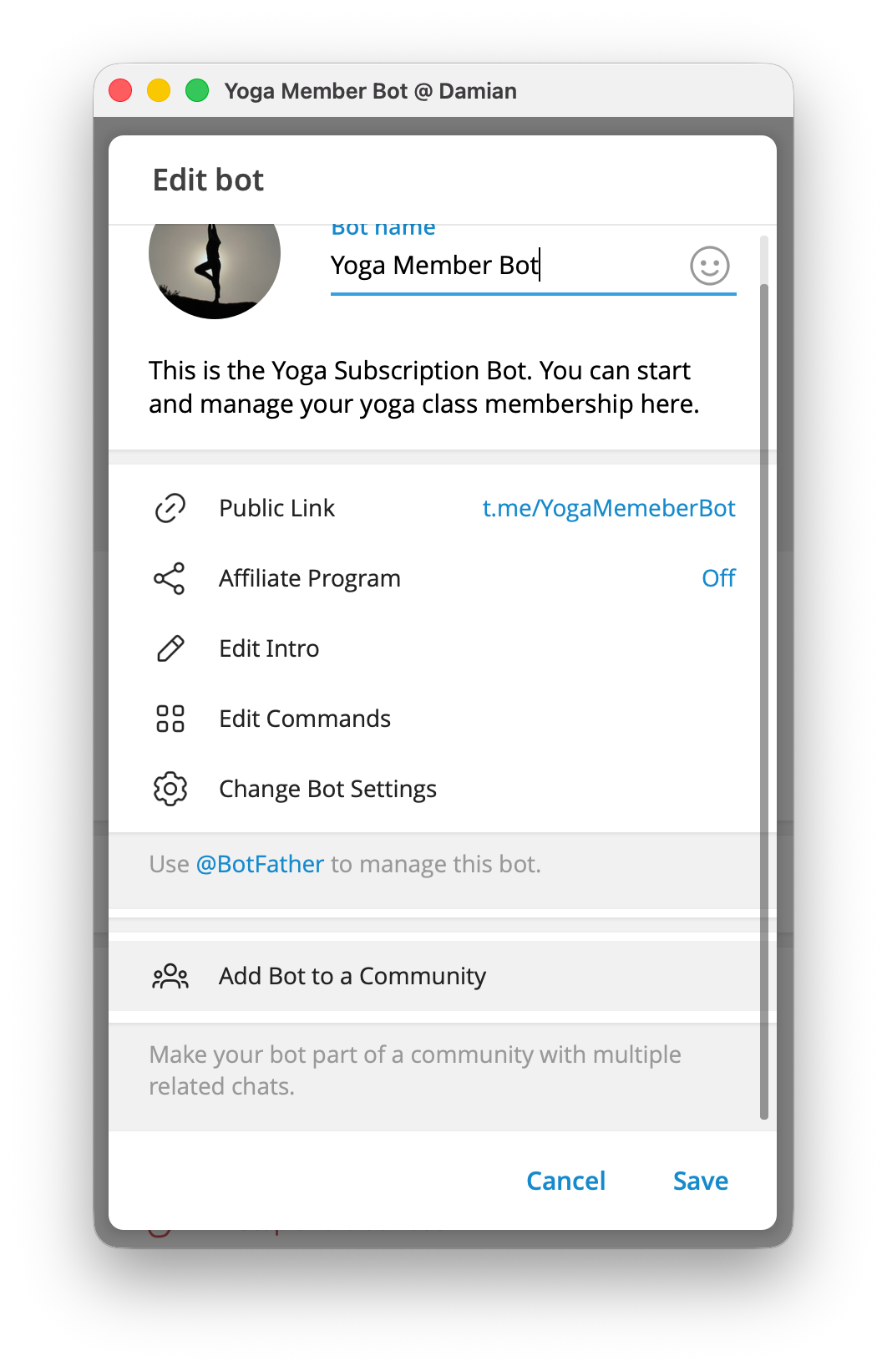
- Open its profile and management controls. Select Add Group to a Community, Add Channel to a Community, or Add Bot to a Community. On Telegram Desktop, a group's action is inside Manage. Other apps can place it directly in the profile.
- Choose Create Community. To connect the chat to an existing Community, choose that Community instead.
- Enter a Community Name and complete the setup. Telegram links the chat to the new Community and posts a service message in that chat.
- Open the Community. Select the Community name in that service message, or use the Community entry in the linked chat's profile. This opens the page that lists its connected chats.
- Share the entry chat, not the Community. Give prospective members the entry chat's username or invite link. Once they join it, they can use the Community page to find other linked chats.
Add groups, channels, and bots
There are two ways to add another chat that you manage:
- From the Community page, select Add a Chat to Community, then select the group, channel, or bot.
- From that group, channel, or bot's profile, select Add [type] to a Community, then choose the existing Community.
Telegram asks how the new chat should appear in the Community.
| Chat visibility | What Community members see |
|---|---|
| Visible | The chat appears in the Community directory. Members can join it directly or send a join request, depending on the chat's own rules. |
| Hidden | The chat does not appear to other Community members. Community administrators and people already in that chat can still see it. |
Hidden controls discovery inside the Community. It does not change the chat's own membership rules or create a paid tier.
When you are deciding whether the next linked chat should be an announcement channel or a discussion group, Telegram Channel vs Group: What's the Difference? explains the practical difference.
Manage the Community and its chats
Open the Community page and select Manage. In some Telegram apps, the same editor is called Edit Community.
Use Who can add chats to choose one of these rules:
| Setting | Result |
|---|---|
| All members | Members can add chats they manage to the Community. |
| Only admins | Member additions become suggestions. Community administrators review them in Pending Requests before adding them. |
The same editor lets you rename the Community, add Community administrators, review removed users, add another chat, or delete the Community. A Community administrator manages the directory. It does not make them an administrator of every linked group or channel.
To detach a chat, open that chat's Manage panel and select Remove [type] from Community. This removes the connection only. The group, channel, or bot stays in Telegram with its own members and settings.
Keep InviteMember paid resources outside Communities
Telegram Communities are useful when one public or freely accessible entry chat should help people discover related chats. They are not a membership or payment layer.
InviteMember controls access to each private Telegram channel or group attached to a subscription plan. A customer receives access to the specific resources in their plan, not a general Community entitlement. InviteMember does not currently document Telegram Communities as a supported way to deliver private paid resources.
Do not add an InviteMember-managed paid group or channel to a Telegram Community until this compatibility is documented. A Hidden chat changes who can discover it in the directory. It does not add an InviteMember subscription check to Community joining. Keep paid resources as individual plan resources instead. For the separate task of building a paid membership, see How to Start a Paid Community on Telegram or Discord.
Telegram Communities FAQ
Can I share a Telegram Community with a link?
Not as a separate Community link. Share the username or invite link for one chat inside it. People who join that chat can then open the Community and discover the other Visible chats.
How do I find a Community after I have joined a linked chat?
Open the linked chat's profile and select its Community entry. During setup, the service message in the chat also links to the Community. Do not rely on Telegram's normal global chat search to find a Community again.
Does joining a Community add me to every linked chat?
No. You become a Community member by joining one linked chat, but you must join each additional chat separately.
Is a Telegram Community like a Discord server?
No. A Discord server has one membership and channels inside it. A Telegram Community connects independent chats that retain their own members, administrators, and access rules.
Can a Hidden chat work as a paid membership tier?
No. Hidden controls who sees a chat in the Community. It does not make Telegram check an InviteMember plan or another payment system before a person joins.

