

A Telegram Member Tag is a short label shown next to a person's name inside a group. It can make a busy group easier to read: Moderator, Coach, Student, Speaker, or Alumni tells people who they are talking to without a separate introduction.
Tags are only labels. They do not give someone administrator permissions, let them enter a private group, or prove that they have paid for a membership. Use a tag to make a role visible, not to control access.
Choose who controls tags
| What you need | Set it up this way | Good examples |
|---|---|---|
| Let members describe themselves | Turn on Edit Own Tags | Designer, Parent, Beginner, Madrid |
| Keep every role accurate | Leave Edit Own Tags off and have administrators assign tags | Moderator, Tutor, Guest speaker, Support team |
| Show who can enter a paid space | Use a private resource and a membership plan, not a tag | A member who has an active subscription |
For a small interest group, self-set tags can help people find others with the same experience or location. For a course, support group, or paid community, administrator-controlled tags are usually clearer. Nobody should be able to label themselves Coach or Team just by changing a field.
Let members add their own tag
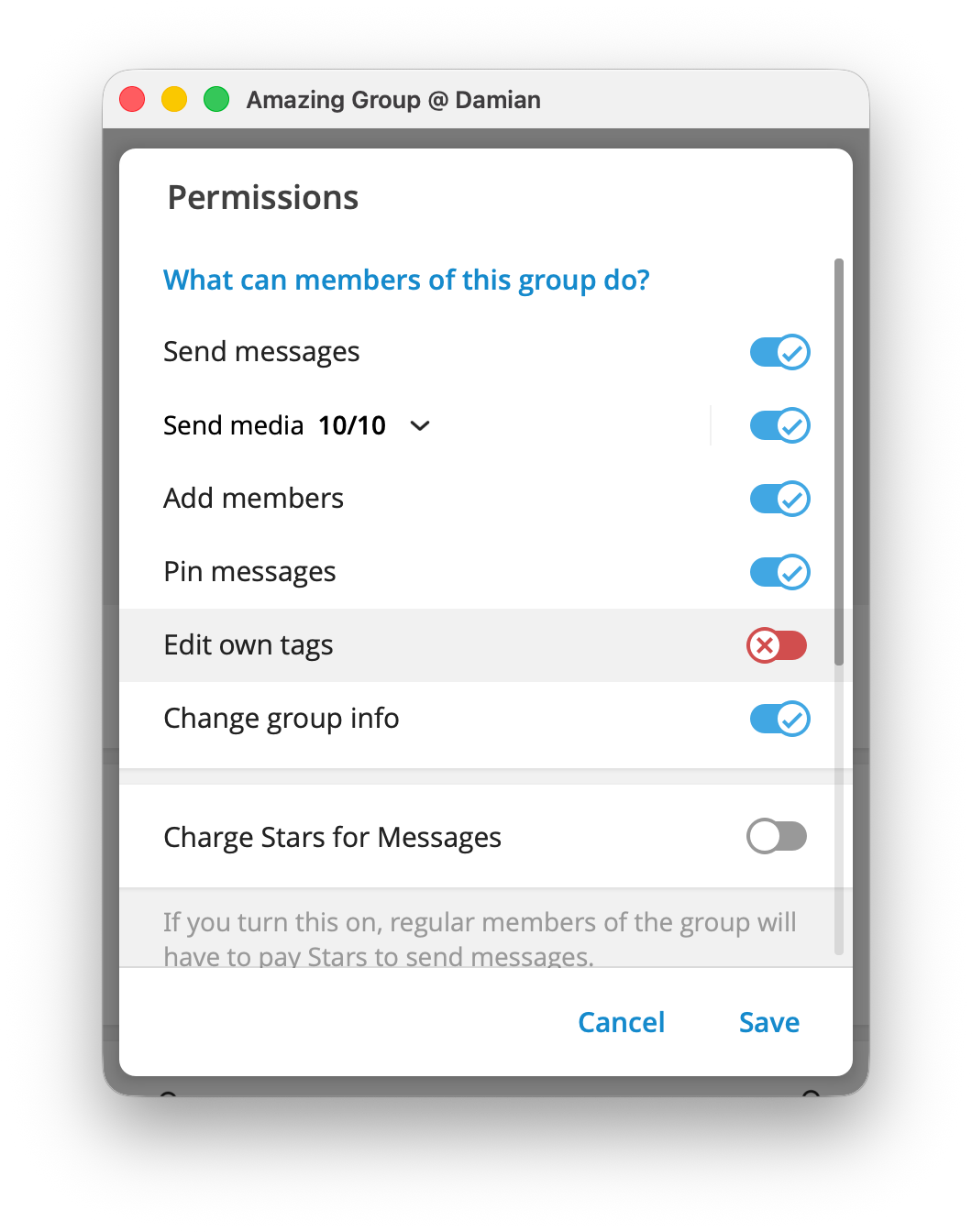
This setting applies to the whole group.
On Telegram for iPhone or Android
- Open the group and tap its name at the top of the chat.
- Tap Edit, then Permissions.
- Turn on Edit Own Tags.
- Tap Done or the check mark to save.
On Telegram Desktop
- Open the group and click its name to open the group profile.
- Click Manage, then Permissions.
- Turn on Edit Own Tags, then click Save.
With this permission on, a member can open their profile from the group member list or one of their messages and choose Add Tag. A tag belongs to that group only. It does not follow the person into other groups.
Add or change a tag as an administrator
Use administrator-assigned tags when the label represents a responsibility or a status you need to control.
- Open the group profile and select Members.
- Select the person whose label you want to set. You can also select their name from one of their messages in the group.
- Choose Add Member Tag. To change or remove a tag, open the same member profile and select the tag that is already there.
- Enter the short label and save it.
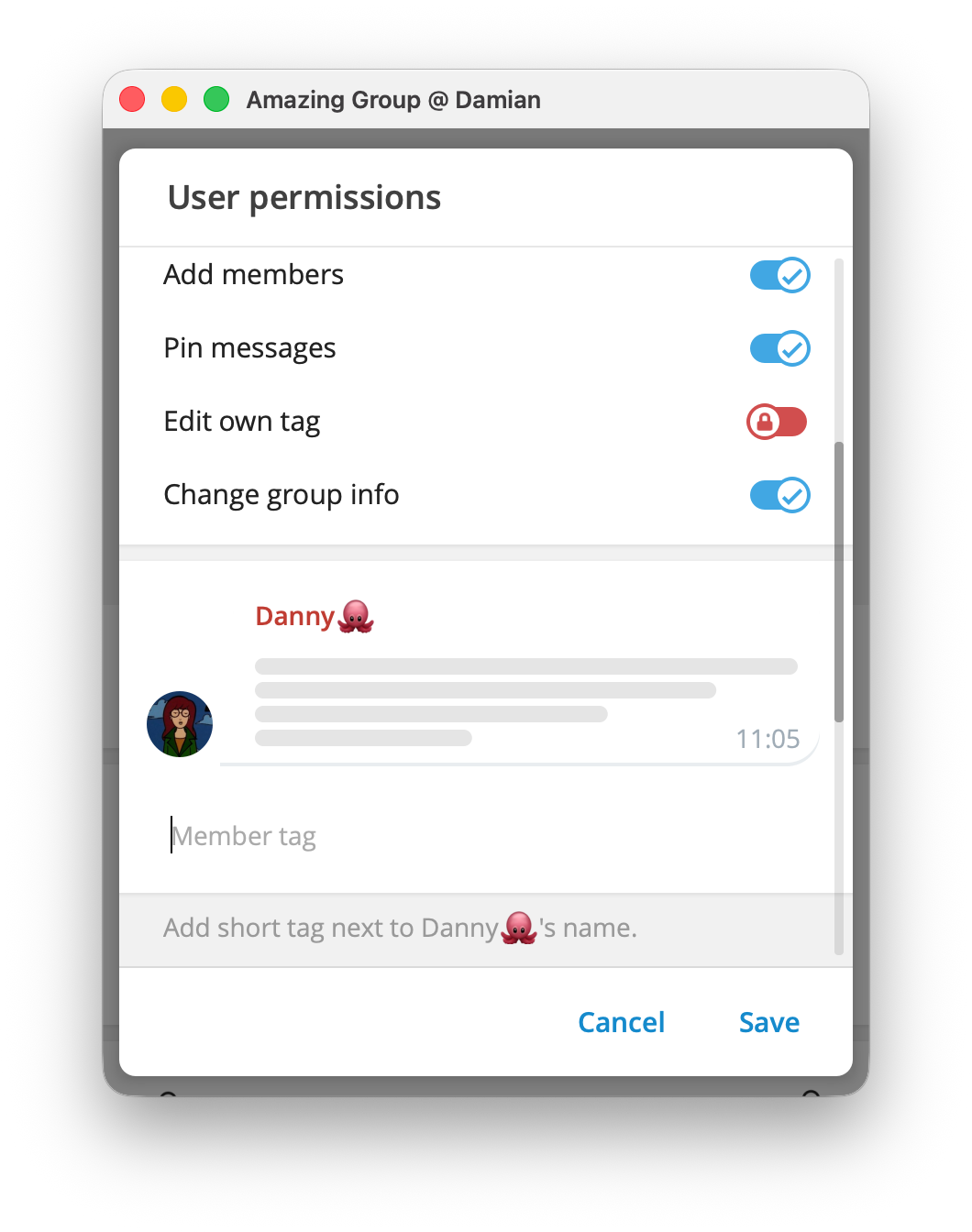
Keep a role label specific. Host, Workshop mentor, and Support team help a member know whom to ask. A vague label such as Important does not.
Telegram displays an administrator's tag in a different color, so members can see that the account also has an administrator role. The tag itself still does not add or remove any administrator permissions.
Use tags without creating confusion
Member Tags work best when each label answers one simple question: who is this person in this group?
| Group type | Useful tags | Do not use tags for |
|---|---|---|
| Learning community | Instructor, Mentor, Student |
Access to a lesson or course level |
| Support group | Support team, Product expert, Volunteer |
A promise that a person can solve every issue |
| Event group | Speaker, Organizer, Attendee |
A ticket, RSVP, or entry check |
| Paid community | Moderator, Community host, Guest expert |
Subscription tier or whether payment is current |
For a paid Telegram community, keep access enforcement separate. An InviteMember project connects the private group as a plan benefit and grants or removes access through the membership flow. A Member Tag can tell people that someone is the community host or a moderator, but it must not be the test for who belongs in the group.
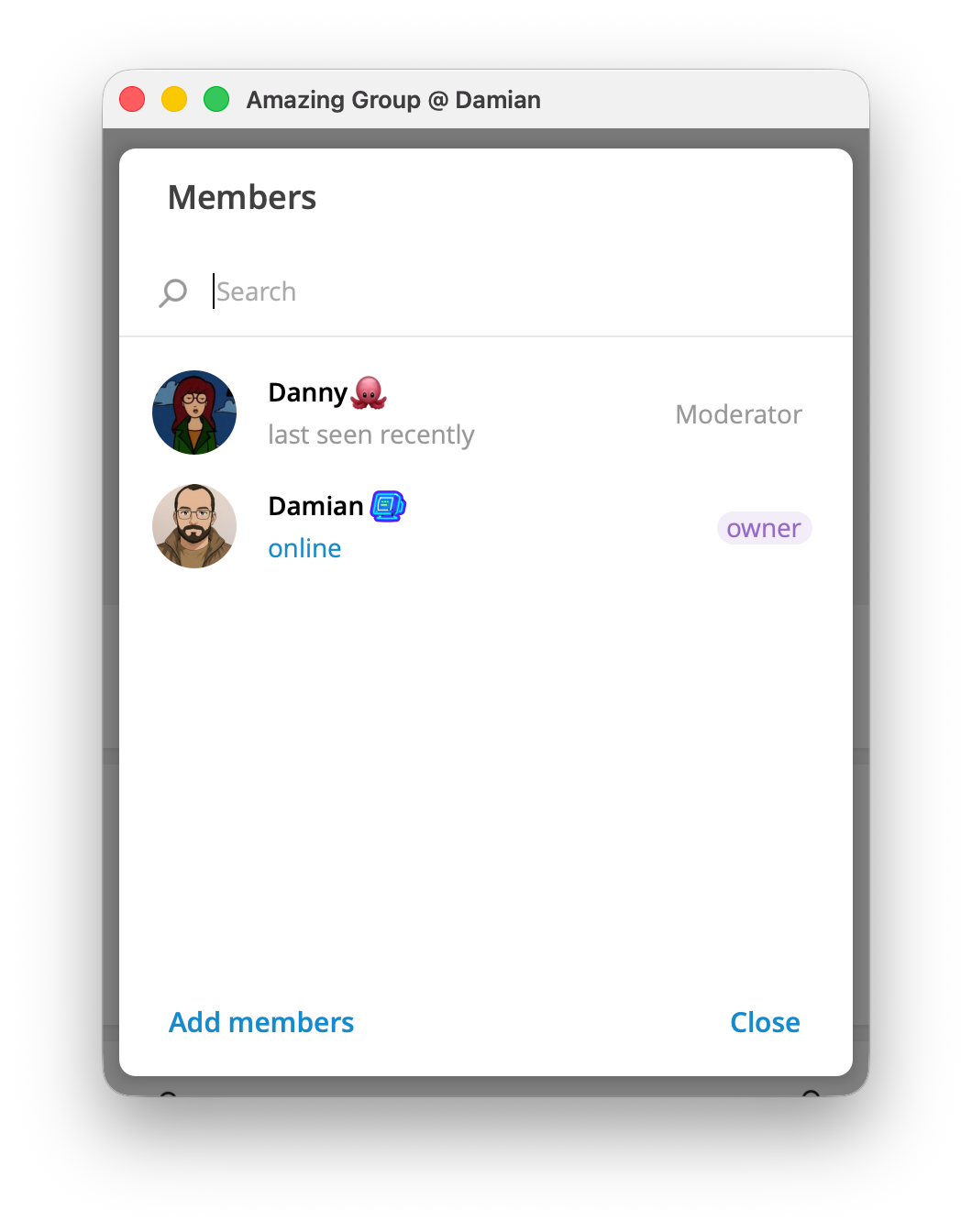
That separation matters when a subscription ends. The tag does not expire with a plan, and it will not remove a person from the group. The connected membership resource handles access; the tag remains a simple label for the people who are there.
Member Tags can also show who answers questions in a support group. For the workflow behind that role, see how to run Telegram groups for customer support.
For the different permissions that let an administrator or bot take action, see Telegram bot permissions for groups and channels.
FAQ
Can Member Tags give someone admin permission?
No. A tag only displays a label. Administrator permissions are set separately in the group's Administrators settings.
Can I use Member Tags in a Telegram channel?
No. Member Tags are a group feature. Use them in the discussion group linked to a channel when people need to identify moderators, speakers, or other roles.
Can a Member Tag control a paid membership?
No. It cannot open a private group, close access when payment ends, or confirm a plan. Use your membership flow for access and use tags only for visible group roles.
Should members be able to edit their own tags?
Turn on Edit Own Tags when the tag is a personal introduction. Leave it off when the tag represents a role your team assigns, such as Moderator, Instructor, or Support team.

