
Telegram Web is the official browser version of Telegram. If you want to use Telegram without installing the desktop app, the safest place to start is Telegram's official web entry point at web.telegram.org.
For most people, the fastest login method is QR code from a phone that is already signed in. If you are choosing between the browser version and the desktop app, Telegram Web is best for quick access, while Telegram Desktop is usually better for heavier everyday use and export-style tasks.
Quick answer
| What you want | Best choice |
|---|---|
| Open Telegram in a browser right now | Telegram Web |
| Sign in fastest when you already have Telegram on your phone | QR login |
| Use Telegram on a borrowed or locked-down computer | Telegram Web, but log out after |
| Use Telegram every day on your own computer | Telegram Desktop is usually the better long-term choice |
| Export chat data or use desktop-first workflows | Telegram Desktop |
What Telegram Web is
Telegram Web is Telegram's browser client.
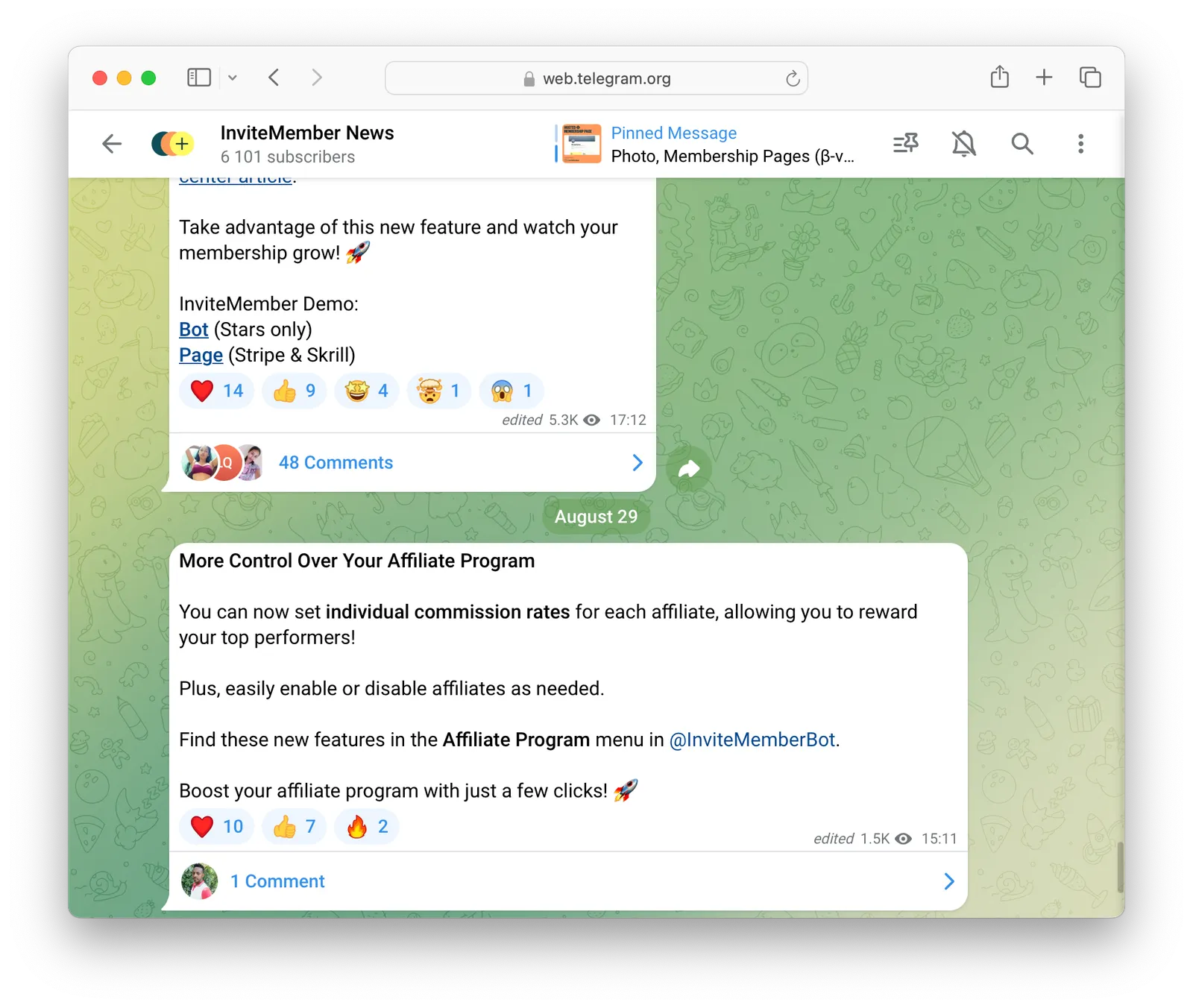
Telegram's official Apps page lists two official web apps:
- Telegram WebK
- Telegram WebA
That matters because people often land on random lookalike login pages. If the page is not an official Telegram domain, do not enter your phone number or code there.
Official Telegram Web links
The safest starting points are:
Telegram's Apps page also lists both WebK and WebA as official clients.
If you are not sure which one to use, start at web.telegram.org and let Telegram route you.
How to log in to Telegram Web by QR code
QR login is usually the cleanest option if your phone already has Telegram.
- Open web.telegram.org.
- Choose QR login if the screen offers it.
- Open Telegram on your phone.
- Go to
Settings->Devices->Link Desktop Device. - Point your phone at the QR code on the screen.
- Confirm the login.
Telegram's translation strings for WebK show this exact QR flow, including the Settings -> Devices -> Link Desktop Device path.
How to log in by phone number
If you cannot use QR login, Telegram Web also offers phone-number login.
The usual flow is:
- Open web.telegram.org.
- Choose
Log in by phone number. - Enter your number in international format.
- Check for the login code.
- Enter the code and continue.
One easy-to-miss detail: Telegram may send the login code inside Telegram on another connected device instead of by SMS.
If you already use Telegram somewhere else, check the verified Telegram chat there first.
If your account uses two-step verification, Telegram may also ask for that password after the code.
Telegram WebK vs WebA
Telegram officially lists both WebK and WebA, but most users do not need to obsess over the difference.
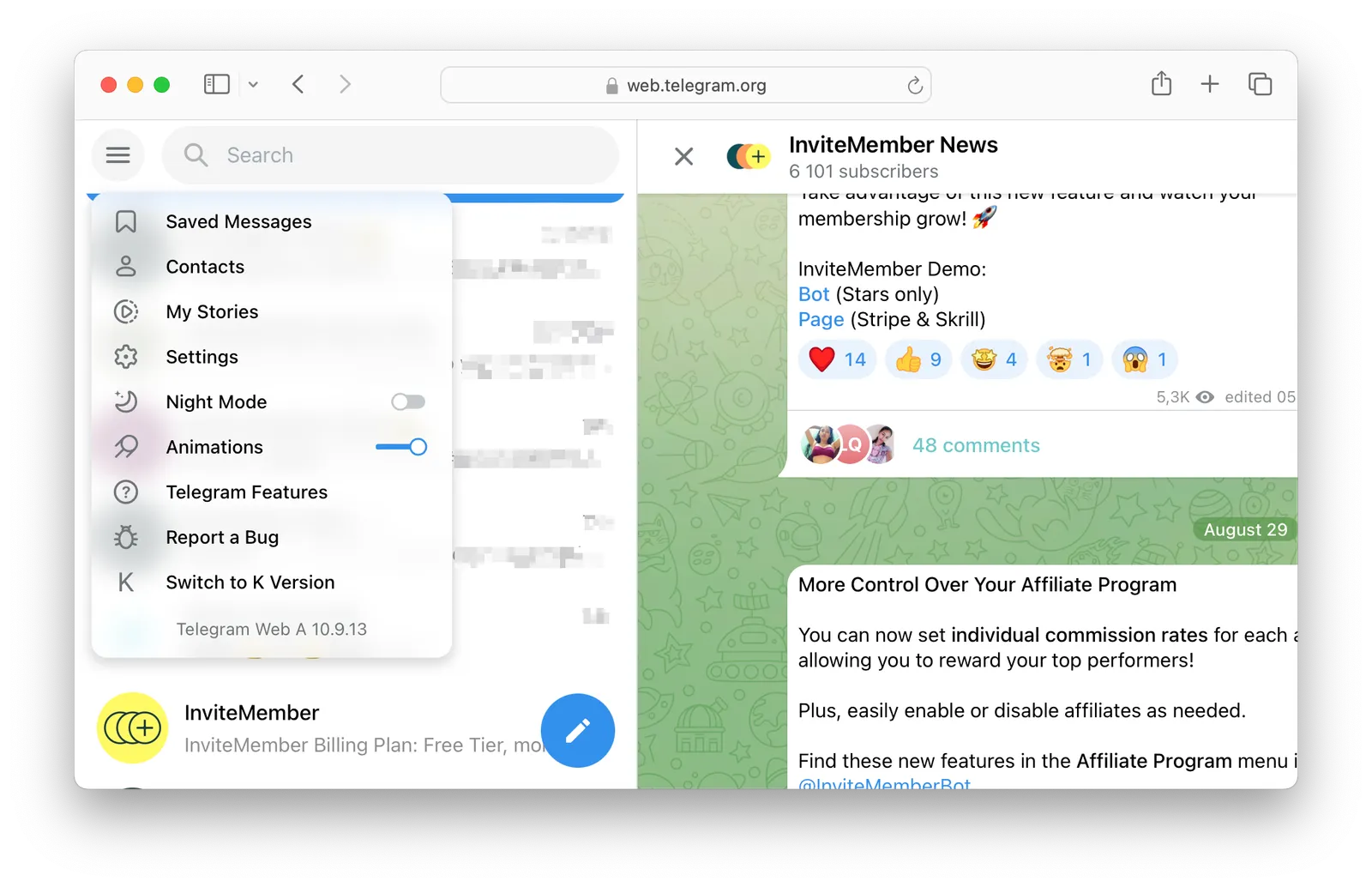
The practical rule is simple:
- both are official
- both are browser clients
- if one behaves oddly in your browser, try the other
That is useful for troubleshooting, but it does not need to become the center of the article. The real intent behind telegram web is usually login, safety, and whether the browser version is enough.
Telegram Web vs Telegram Desktop
Telegram Web is great when you want quick access with no install.
Telegram Desktop is usually better when you want:
- a native app on your own computer
- longer daily sessions
- easier desktop-style workflows
- features that are more comfortable outside a browser
For example, if your goal is to export Telegram chats or data, the practical path is still Telegram Desktop.
If your goal is just to open messages quickly from a browser, Telegram Web is enough for many people.
Is Telegram Web safe?
Telegram Web is safe when you use the official Telegram domains and handle session security properly.
Basic safety rules:
- start from
web.telegram.orgor Telegram's Apps page - do not enter your code on unofficial sites
- do not stay signed in on shared computers
- turn on two-step verification for stronger account protection
If you are using a public or shared machine, log out when you finish.
How to log out of Telegram Web
The exact button placement can vary a little between WebA and WebK, but the path is straightforward:
- Open the main menu or settings area.
- Find
Settings. - Choose
Log out.
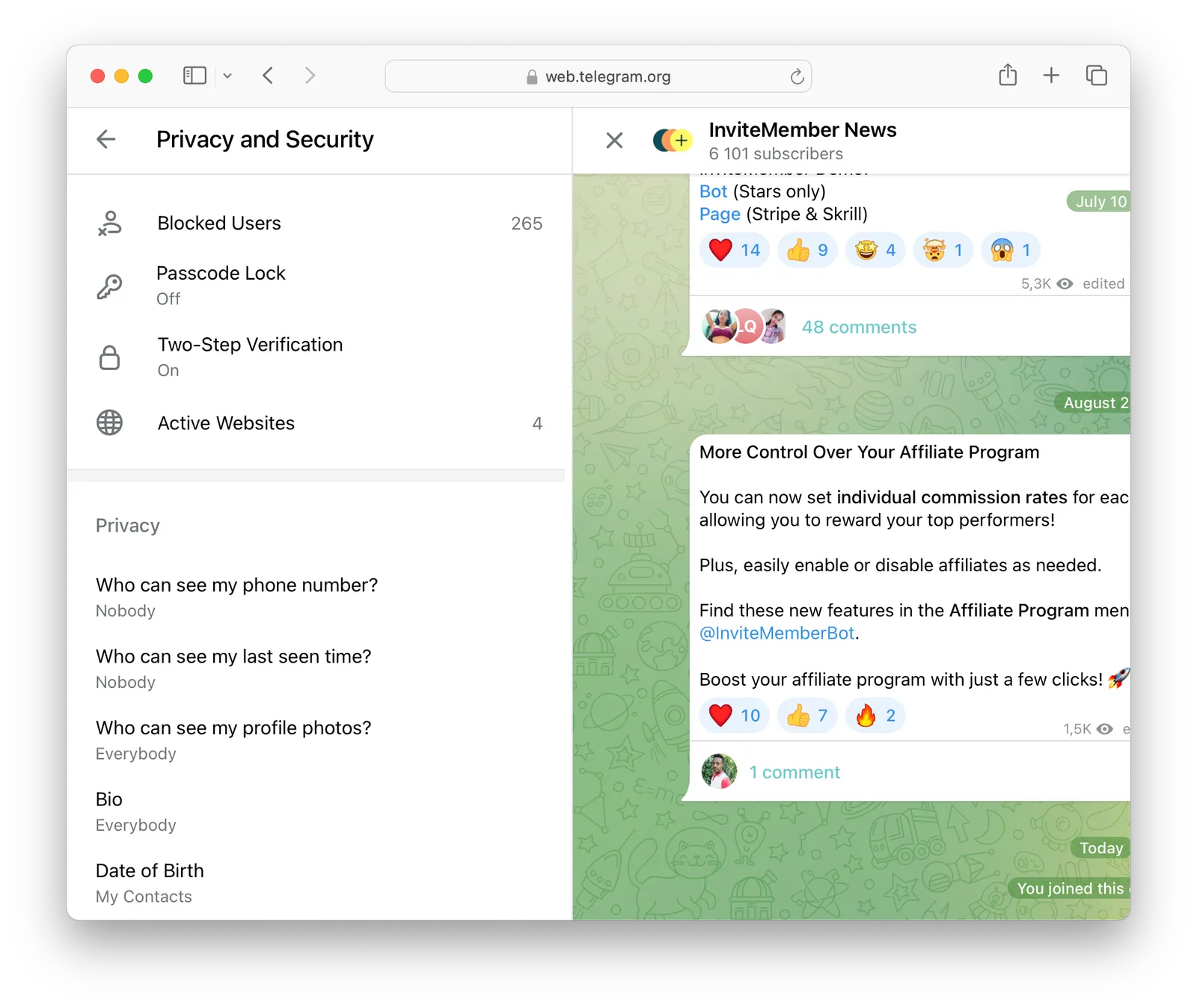
If you no longer have that browser in front of you, you can remove the session from another Telegram device through Settings -> Devices or Privacy & Security -> Active Sessions.
For a full device-by-device logout guide, use How to Log Out of Telegram on iPhone, Android, Desktop, and Web.
Common Telegram Web problems
Telegram Web is not sending my code
Check whether Telegram sent the code to another signed-in device first. Telegram says this can happen instead of SMS.
Also make sure:
- the phone number is in international format
- you still control that phone number
- you are not expecting a phone call unless two-step verification was already enabled
If you still cannot get in, use How to Contact Telegram Support for the official support paths and the right next step.
The QR code is not working
Make sure:
- you opened Telegram on the phone itself
- you used
Settings->Devices->Link Desktop Device - the phone camera can see the full QR code clearly
If it still fails, switch to phone-number login.
Which is better, Telegram Web or Desktop?
If you want instant browser access, use Telegram Web.
If you want a more permanent computer setup, use Telegram Desktop.
Can I use Telegram Web without my phone?
You can use it after you are signed in, but first access still depends on your account login flow. In practice, QR login needs your phone, and phone-number login still depends on receiving the code.
Final answer
Telegram Web is the official browser version of Telegram, and the safest way to access it is through web.telegram.org. For most users, QR login is the easiest path, while Telegram Desktop is the better choice for heavier everyday use.
The main things to fix on a weak telegram web article are simple: lead with the official link, explain QR login clearly, mention WebK and WebA without overcomplicating them, and warn readers away from unofficial login pages.

