

If you need a copy of a Telegram conversation, the practical path is Telegram Desktop. Telegram lets you export chats in a local format, including messages and media, so you can keep a record outside the app.
This is useful for creators, admins, support teams, and anyone who wants to save an important conversation before changing devices or cleaning up an account.
Can you export Telegram chat history?
Yes. Telegram supports chat export in Telegram Desktop.
You can export:
- a single chat
- some or all of your cloud chats
- messages with attached media
Telegram exports can be saved in two common formats:
- HTML, for a readable local page
- JSON, for machine-readable data
If you do not see the export option in a mobile app or Telegram Web, use Telegram Desktop instead.
How to export Telegram chat on desktop
The exact menu label can vary a little by version, but the flow is simple.
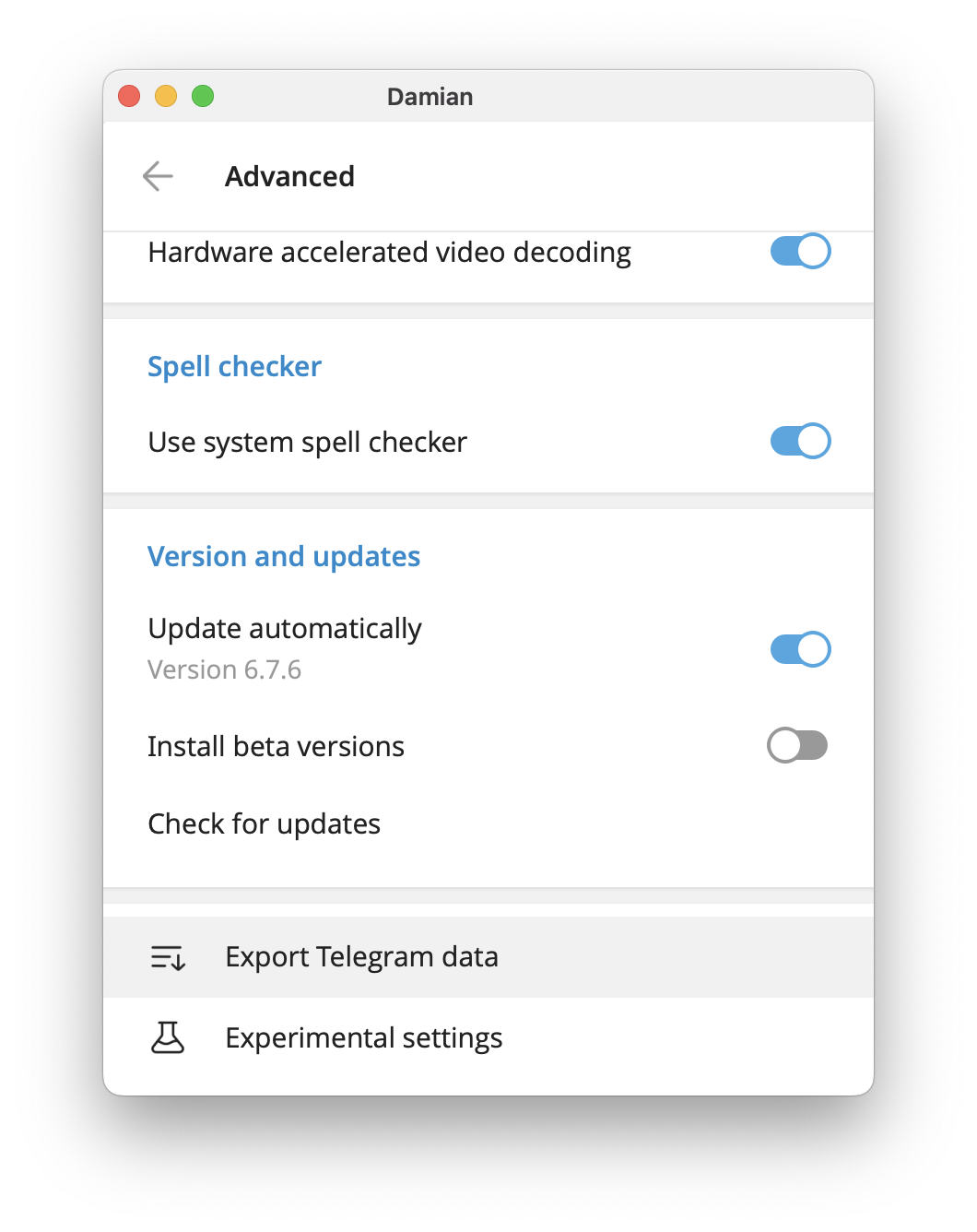
For all chats or full data export
- Open Telegram Desktop
- Go to Settings
- Open Advanced
- Click Export Telegram Data
- Choose what you want to include, such as messages, photos, videos, and files
- Pick the date range or chat scope if Telegram shows those options
- Choose the output format, usually HTML or JSON
- Start the export and wait for it to finish
For one specific chat
- Open the chat you want to save
- Open the ⋮ menu in that chat
- Choose Export chat history
- Select the content and format you want
- Confirm the export
If you just logged in to Telegram Desktop, you may need to wait 24 hours or confirm the export request from another device before the download starts.
What Telegram export usually includes
Telegram Desktop exports can include:
- messages
- photos
- videos
- documents and files
- other media you choose to include
That makes export useful when you need a local archive, not just a quick screenshot or copied text.
What export does not replace
Export is useful, but it is not the same thing as every other Telegram action.
It does not replace:
- a live backup that stays synced inside Telegram
- moving your Telegram account to a new phone
- archiving a chat inside the app
- deleting a chat
If your real goal is device migration, use a transfer guide instead of a chat export.
For that, see Transferring Telegram to a New Device.
When export is most useful
Chat export is most useful when you want to keep a record for later.
Common cases include:
- saving client or customer support history
- keeping moderation records
- archiving a creator or community conversation
- saving a chat before closing an account
- keeping important files and messages in one local place
If you manage Telegram chats for work, export is often easier than trying to reconstruct old messages later.
Common problems
I do not see the export option
Use Telegram Desktop. The export workflow is not meant to be web-only or mobile-first.
The export is taking a long time
Large chats with lots of media can take a while. Give Telegram time to finish before closing the app.
HTML or JSON, which should I choose?
Choose HTML if you want to read the chat like a local web page.
Choose JSON if you want structured data for tools or analysis.
My export is incomplete
If the chat is very large, double-check the date range and what content types you selected before exporting again.
Extra tips
If you are exporting chats for business use:
- export only what you need
- store the file in a secure place
- keep the HTML version if you want human-readable archives
- keep the JSON version if you need structured data later
If your main problem is finding files already saved by Telegram, this guide on how to find Telegram files can help too.
If you are still deciding whether Telegram Desktop is the right tool for your workflow, read Telegram web for the difference between web and desktop use.
Final answer
So, how do you export Telegram chat history?
The short answer is: use Telegram Desktop, open the export tool, choose the chat or data you want, and save the result as HTML or JSON.
If you only need a local copy of a conversation, that is the simplest path.
If you want, I can also give you:
- a Ghost-specific version without the meta line
- an HTML version
- the excerpt and SEO fields separately

