

Temporary access means letting someone into a private community for a limited time. Use it for a weekend pass, a short course, a gift, or a special exception.
If you are building this with InviteMember, start a project first. You can connect your Telegram and Discord resources, then choose the temporary-access option that fits your offer.
First, choose what the person can enter and when access should end. They may get a Telegram channel, Telegram group, Discord role, or all three.
Decide what the access includes
A Discord role opens only the areas it is allowed to see. Make sure each person gets every resource you promised, then loses access at the right time.
The ending rule should fit the reason for access. A fixed pass should end automatically. A gift should end after its stated period. A one-person correction should change only that person's dates. A manual exception needs a reminder because it will not end by itself.
Choose the access method first
| What you need | Typical method | What ends the access |
|---|---|---|
| Sell a fixed short pass | A one-time membership plan | The stated access period ends. |
| Give selected people a gift, promotion, or offline-payment access | An access code | The code access period ends. |
| Correct one completed one-time payment | Correct the start or end date | The corrected end date arrives. |
| Keep one person as an exception | A manual exception | You remove the exception. |
| Let a possible customer assess the offer | A free trial | The trial ends or they choose a paid plan. |
Use a free trial when somebody has not decided to buy. Use a short paid pass when the limited period is what they are buying.
Apply the rules with InviteMember
The next steps use InviteMember as a codeless way to keep the membership bundle and ending rule together. In InviteMember, a subscription plan can include private Telegram channels, Telegram groups, Discord roles, and manual benefits. One temporary offer can therefore give a member all the resources you choose.
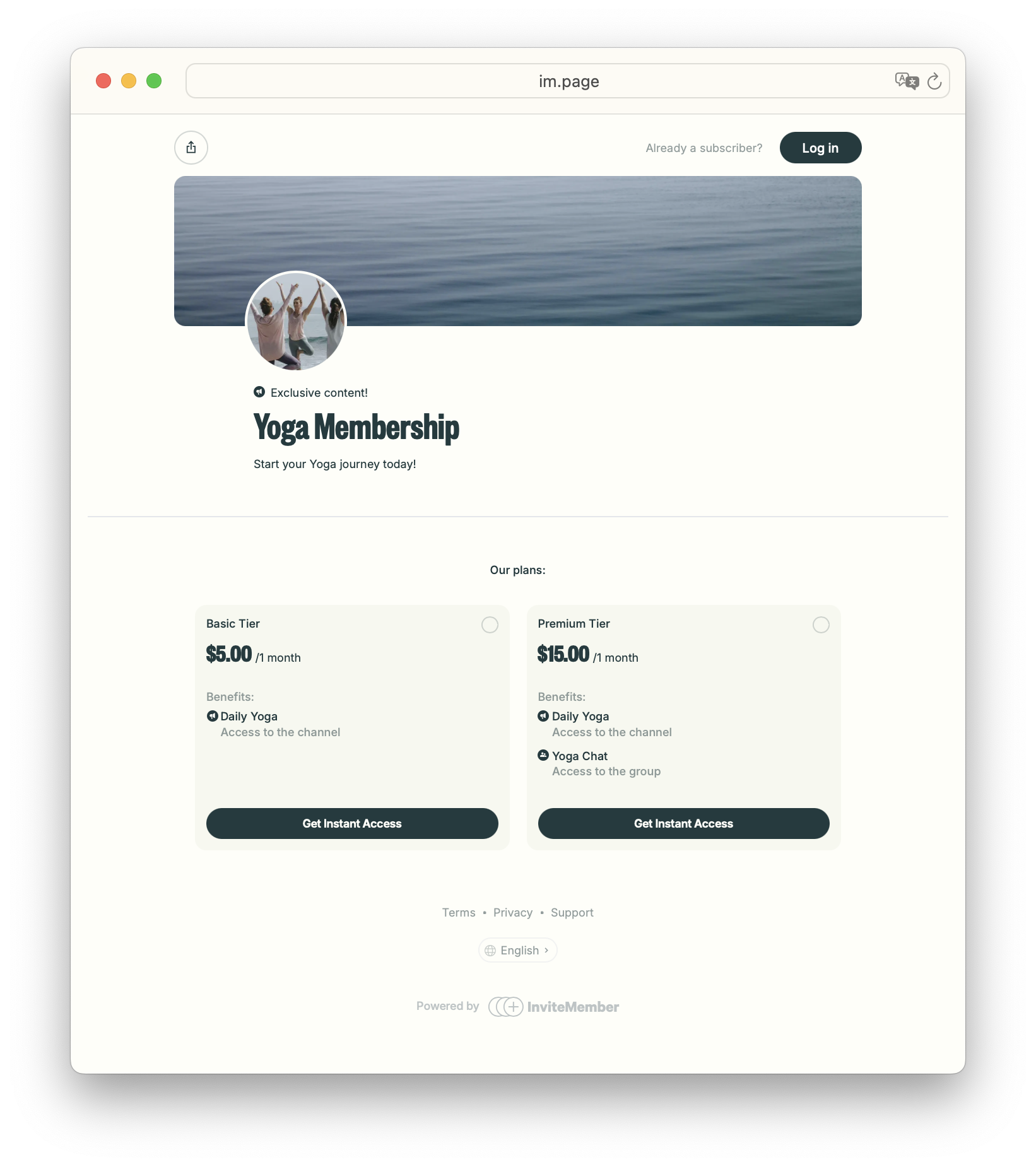
In InviteMember, add the resources in Settings > Resources and include them in the plan. For a Discord role, Discord permissions decide which channels, forums, or voice areas the role can see. InviteMember manages the role; it does not make those Discord areas private by itself.
Set up the resources first. Then test every resource in the plan. For Discord role and permission setup, see how to create a paid Discord server. For Telegram setup, see how to create a paid Telegram channel.
Give a fixed short pass with a one-time plan
Use a non-recurring plan when the short pass is the product: a weekend event, a week of premium posts, or a fixed course period that includes a channel, group, and Discord role.
Open Settings > Subscription plans, select the plan, and set Recurring: OFF. The bot creates one charge instead of a recurring subscription when the payment option supports recurring billing. The plan billing period decides how long the buyer has access to the included resources.
Turn on Single-use only when a person must not buy that same plan again. It means one purchase of that plan per person and turns Recurring off automatically. It does not set the period.
For example, a three-day plan with Single-use gives one three-day pass. Without Single-use, it is still a three-day pass, but it does not have the same one-purchase rule. Leave Single-use off when people should be able to buy the same event pass again later.
State the included resources, duration, price, and no-renewal rule in the plan description. Test with another account: it should receive every planned Telegram and Discord benefit, and a second purchase should be blocked only when you turned on Single-use.
Give selected people access with a code
Use an access code for a partner campaign, speaker gift, scholarship, offline payment, or private launch. A code activates the plan you choose, so it can grant the same Telegram and Discord resource bundle as a paid plan.
In Settings > Payment options > Access Codes, choose the plan, access period, activation limit, and expiration date. The access period controls how long an activated member has access. The expiration date only stops new activations, so do not confuse it with the member's end date.
Make a plan Access Code only when regular visitors should not see it. Send the code or activation link with the resource bundle, activation deadline, and access end date. Test one code before you send a batch.
Correct the dates for one completed payment
Use a date edit when someone already paid for a non-recurring plan, but their access should start or finish on different dates. This is useful when somebody buys a multi-resource event pass early.
Send this command to your membership bot:
/edit_payment_dates PAYMENT_ID EFFECTIVE_FROM EFFECTIVE_UNTIL
Find PAYMENT_ID in the internalID column of your payments.csv export. EFFECTIVE_FROM is the access start. EFFECTIVE_UNTIL is the access finish. Use 2026-09-01 for a full-day date or 2026-09-01T09:00:00+00:00 when the exact time matters.
This changes an existing one-time payment. It does not grant access to an unpaid person or edit a recurring subscription. Check the person's Telegram access and Discord role after the edit before you rely on it for a live event.
Keep a Telegram exception manual
Whitelisting is for a person who should stay in a Telegram channel or group without a plan or payment: a guest expert, team member, or short support exception.
Send /whitelist USER_ID to the membership bot, then add the person to the Telegram resource manually. If you do not know the person's Telegram ID, find it in Project > Dashboard > Users. A whitelist does not add the person, and it has no automatic end date.
To end the exception, send /unwhitelist USER_ID. Set the reminder when you create the whitelist. Do not use this command for a Discord role. For Discord, use a plan, code, or payment-date correction that you can test, or remove the role manually in Discord when it is a true exception.
Test the whole membership bundle
Before you share the offer, use a second account to test:
- the correct Telegram channel and group access;
- the correct Discord role and the private areas it unlocks;
- the start and end rule for the plan, code, or date edit;
- a blocked second Single-use purchase or expired code; and
- the manual removal reminder when you use a Telegram whitelist.
FAQ
Can one plan include Telegram and Discord access?
Yes. A plan can include Telegram channels, Telegram groups, and Discord roles. Test every included resource before you sell the plan.
Does Single-use decide when access ends?
No. Single-use stops a repeat purchase of the same plan. The billing period decides duration.
Can I use a Telegram whitelist for a Discord role?
No. Whitelisting applies to Telegram channels and groups. It is not a Discord role-management command.
When should I offer a free trial instead?
Use a free trial when somebody needs to assess the paid offer before buying. Use a one-time plan when the short period is the product being sold.
Final answer
Choose the method from the reason for access. Use a fixed pass for a set period, a code for selected people, a date change for one completed non-recurring payment, and a whitelist only for a manual Telegram exception. Then test every Telegram and Discord resource before you offer it.

